

Appearance
One-to-One Bookings
One-to-One bookings are member trips with a pickup and drop-off location, usually driven by a volunteer driver.
Booking lifecycle
The diagram below shows what happens from creating the booking through to invoicing and payment, including notifications sent along the way. Click the diagram to zoom in.
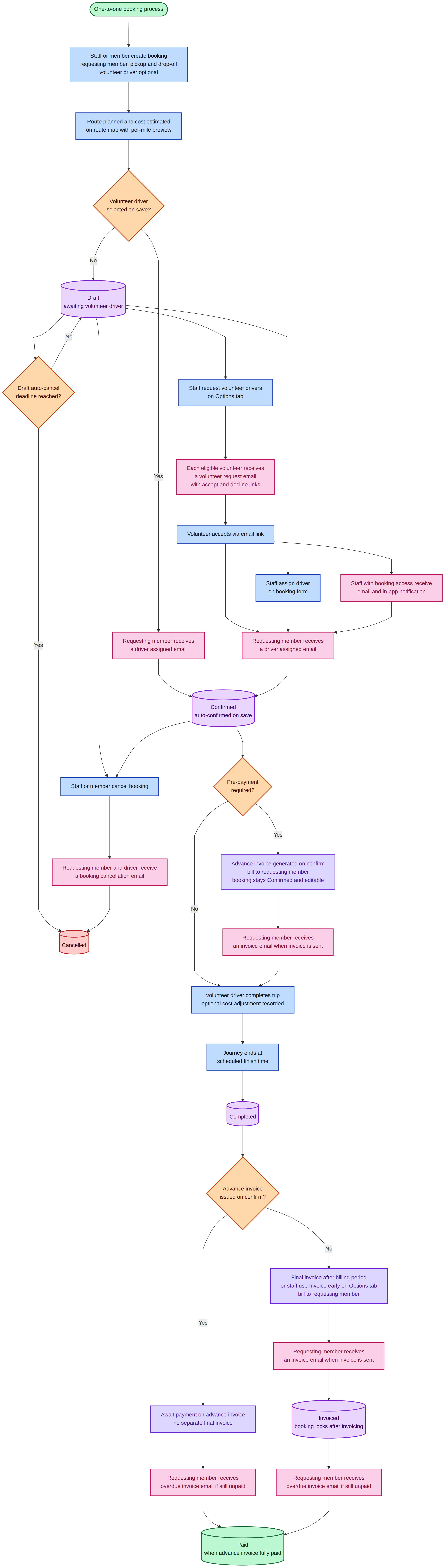
The One-to-One booking lifecycle from creation through to payment.
Create a One-to-One booking
- Go to Bookings.
- Click New booking on the list or calendar view.
- Select One-to-One as the booking type.
- Choose the Vehicle and set the Schedule (date plus start and end times).
- In One-to-One details, select the Requesting member (they need a paid subscription for the trip date), set the pickup and drop-off on the map, and optionally assign one or more Drivers. Volunteer drivers are listed first, then staff drivers. The first driver is the lead driver. When the driver is both a staff driver and a volunteer driver, use Charge staff driver hourly to turn off the staff driver hourly rate if they are driving as a volunteer. Optionally assign one or more Passenger Assistants — the booking still needs a driver. A second assistant can shadow the trip. If your team has an operational area enabled, pickup and drop-off are checked against it — Warn shows an alert and still lets you save; Block refuses the save. If that subscription later lapses, the booking warns that the member is not subscribed. When draft auto-cancel is on, the booking is cancelled in the same window as unfinished drafts, and the notice says The member is not subscribed.
- Add optional Notes for volunteer driver, then save.
You can also create a One-to-One booking from the calendar by clicking or dragging on an empty time slot, then choosing One-to-One before saving.
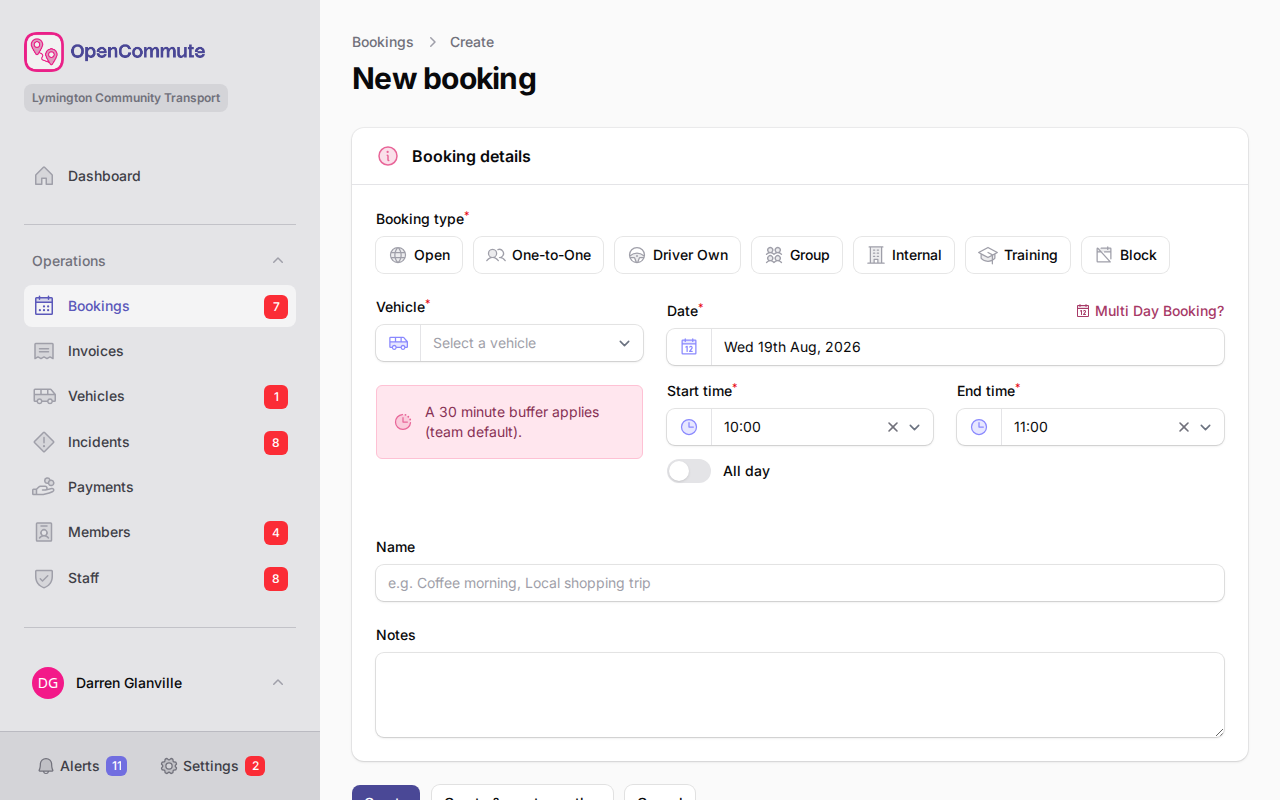 An example of creating a One-to-One booking with pickup and drop-off on the map.
Volunteer and staff drivers
One-to-One bookings are saved as Draft until a volunteer or staff driver is assigned.
- A new booking without a driver stays in Draft.
- When you assign a driver and save, the booking moves to Confirmed automatically.
- Until a driver is assigned, a warning is shown on the edit page and in the calendar tooltip.
The requesting member is notified by email when a driver is assigned.
If you save a One-to-One booking without a driver, Settings → Bookings → One-to-One → Driver requests controls whether eligible drivers are notified automatically by email and OpenCommute app notification (the preferred volunteers or staff drivers first) or whether a prompt asks first. Member requests from the OpenCommute app follow the same automatic setting. With automatic sending off, choose Who should we email? — Volunteers, Staff drivers, or both — on every save while no driver is selected. A table lists who will receive the emails and when a request was already sent. Turn on I confirm that request emails will be sent, then choose Send request emails, or choose Save without sending. Request drivers on the missing-driver warning or Options tab always uses the confirmation prompt.
Each send, skip, or “I am not available” reply is recorded on the booking Activity tab.
Volunteer drivers are listed first on the booking form, then staff drivers. See Managing Staff.
Driver overlap prevention
The same driver cannot be booked for overlapping trips. If you select a driver who is already assigned elsewhere during the chosen time, the form shows a validation error and the booking cannot be saved until you change the driver or adjust the schedule.
Vehicle overlap rules and booking buffers still apply in the usual way. See Booking Buffers and Managing Bookings.
Reverse a booking (return trip)
Use Reverse booking when a member needs a return journey with pickup and drop-off swapped — for example, from an appointment back home.
- Open the original One-to-One booking from the list or calendar.
- Go to the Options tab.
- Click Reverse booking.
You are taken to the New booking form with the return trip prefilled. Nothing is saved until you click Create.
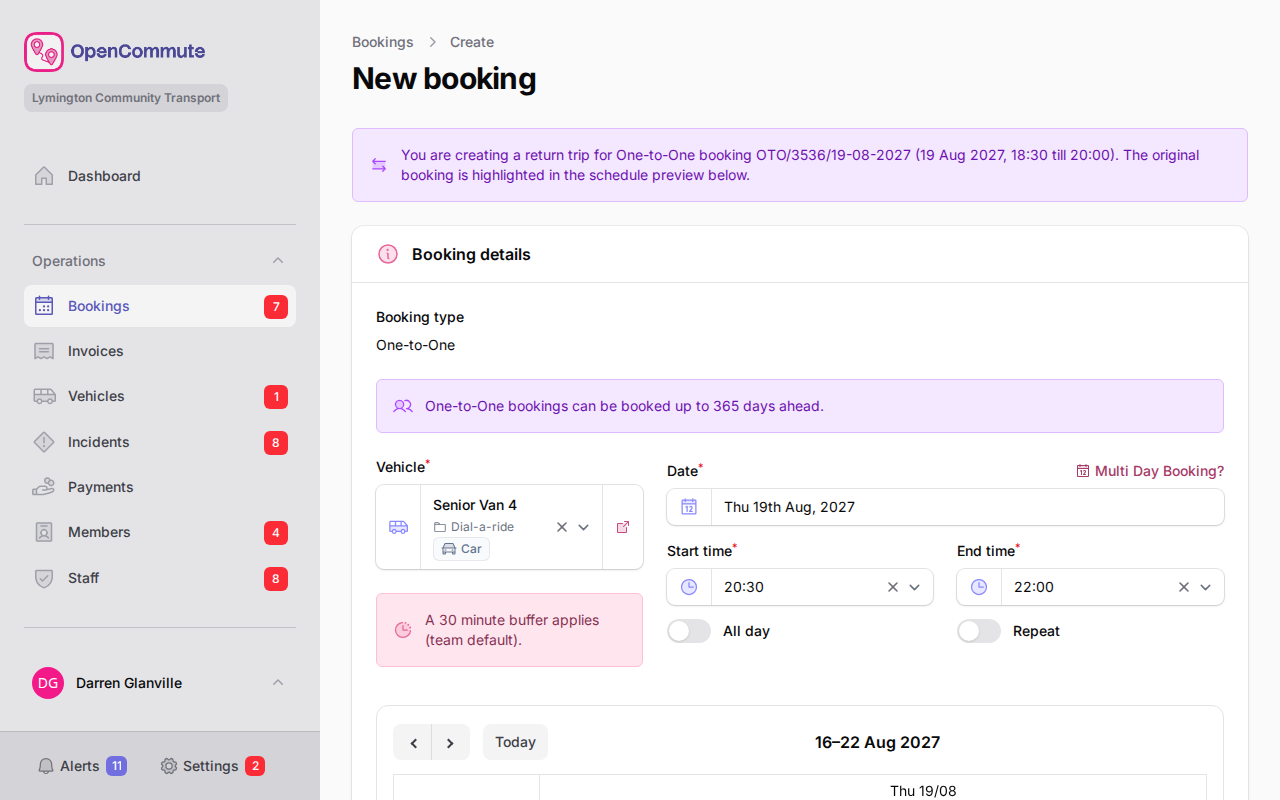 An example of creating a return trip using Reverse booking.
What is prefilled
- Booking type — locked to One-to-One (you cannot change the type on a reversed booking)
- Vehicle and Requesting member — same as the original booking
- Pickup and drop-off — swapped (the original drop-off becomes pickup, and vice versa), including any stop notes
- Volunteer driver — prefilled if the original booking had one; you can change this before saving
- Schedule — same date as the original booking. The return trip is placed after the original booking ends, plus your team or vehicle booking buffer, and lasts the same length as the original trip. Adjust the start or end time if needed before saving.
On the new booking form
- An info message at the top explains which original booking you are reversing, including its reference and schedule.
- The schedule preview highlights the original booking with a pulsing border so you can see how the return trip fits around it.
- Review the route on the map, confirm the times, then save.
When reverse booking is unavailable
Reverse booking is only shown when:
- The booking is One-to-One
- Both pickup and drop-off locations are complete on the map
- You have permission to create bookings
To cancel the original trip instead, use Cancel booking on the same Options tab.
Edit or cancel a One-to-One booking
- Open the booking from the list or calendar.
- Use Details for the vehicle, schedule, and notes.
- Use One-to-One details for the member, route, and volunteer driver.
- To create a return trip, open Options and click Reverse booking.
- To cancel the booking, open Options and click Cancel booking. Enter a reason — the notice then shows who cancelled it and why. Other cancellation reasons are listed in Managing Bookings.
The booking type is fixed after creation and cannot be changed on the edit page.
Invoicing
Teams without pre-payment can use Invoice early on the Options tab while the booking is Confirmed (after a driver is assigned and before the trip). The invoice uses the route estimate on the map and locks the booking when it is created. See Mileage and Invoicing — Invoice early.
If pre-payment is on, an advance invoice is created automatically when the booking is confirmed; you do not need a separate final invoice after the trip.
After the trip completes, any remaining invoice is created automatically at the billing buffer unless you already invoiced early.
Related
- Managing Bookings — list, calendar, and filters
- Managing Staff — volunteer drivers for One-to-One trips
- Booking Buffers — gaps between bookings on the same vehicle
See also: community car scheme software
See also: door-to-door dial-a-ride trips