

Appearance
Support Tickets
Raise a support ticket when you need help with your subscription, billing, or using the platform. Search the knowledge base first, then create a ticket if you still need help.
Billing access required
Only users with billing access (usually the billing contact) can create and manage support tickets.
Open support tickets
You can open tickets from Settings > Support tickets, or from the Support knowledge-base page.
From Settings
- Click Settings in the footer menu.
- On the settings hub, click Support tickets (billing access required).
- Or click Support to search the knowledge base first, then use View your tickets or Create a ticket at the bottom of the page.
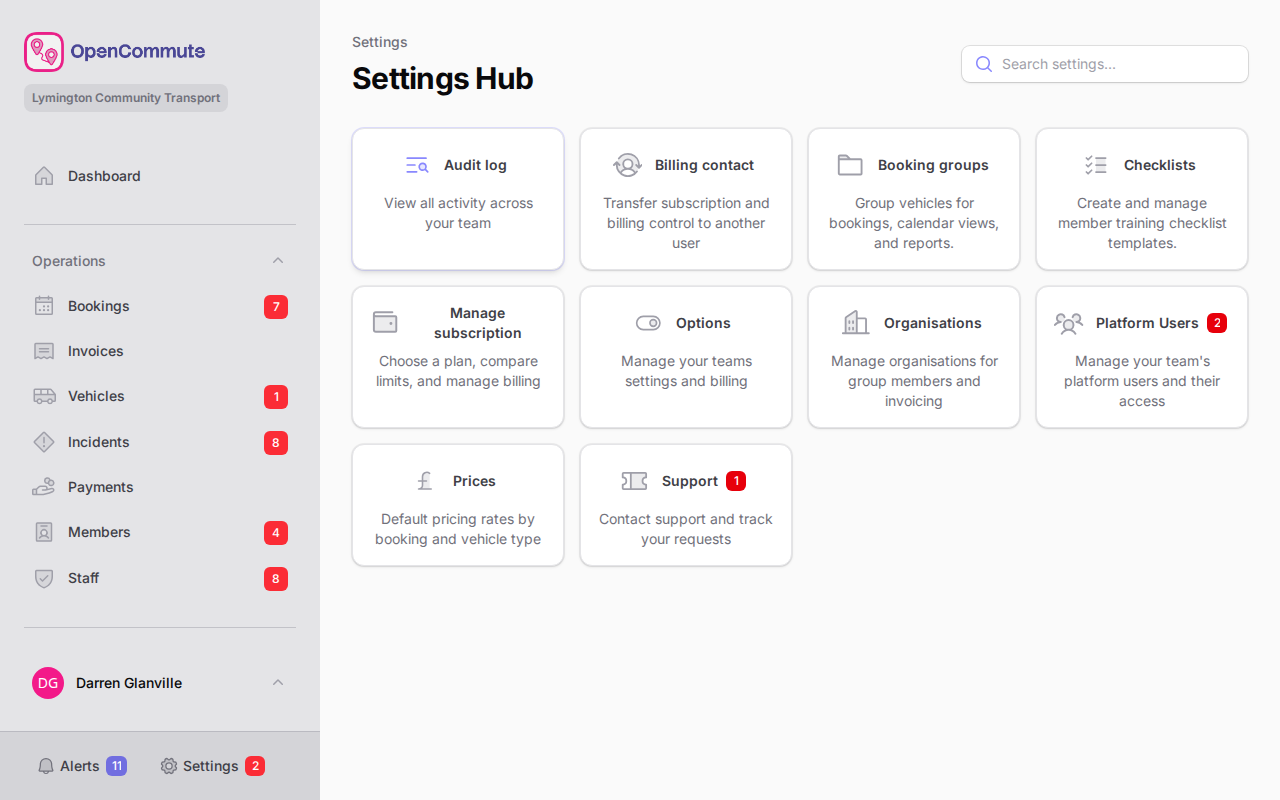 An example of the settings hub — billing users also see a Support tickets card.
From the dashboard
- Open the Dashboard.
- Click Support in the header and choose Support tickets (billing access), or Support to search the knowledge base first.
The Support tickets hub card and dashboard Support button show how many tickets are Awaiting your reply. The Settings footer badge also includes that count. See Dashboard and Onboarding.
Create a ticket
- Go to Settings > Support tickets, or Settings > Support and scroll to Contact support.
- Click Create a ticket (or open Support tickets and use New).
- Enter a Subject that summarises your question.
- Choose a Priority button — Low, Medium (default), or High.
- In How can we help?, describe the issue and what you were trying to do.
- Optionally enter a Related page (for example Bookings or Invoices) and the Page address from your browser.
- Optionally add Screenshots — images are resized automatically.
- Click Create.
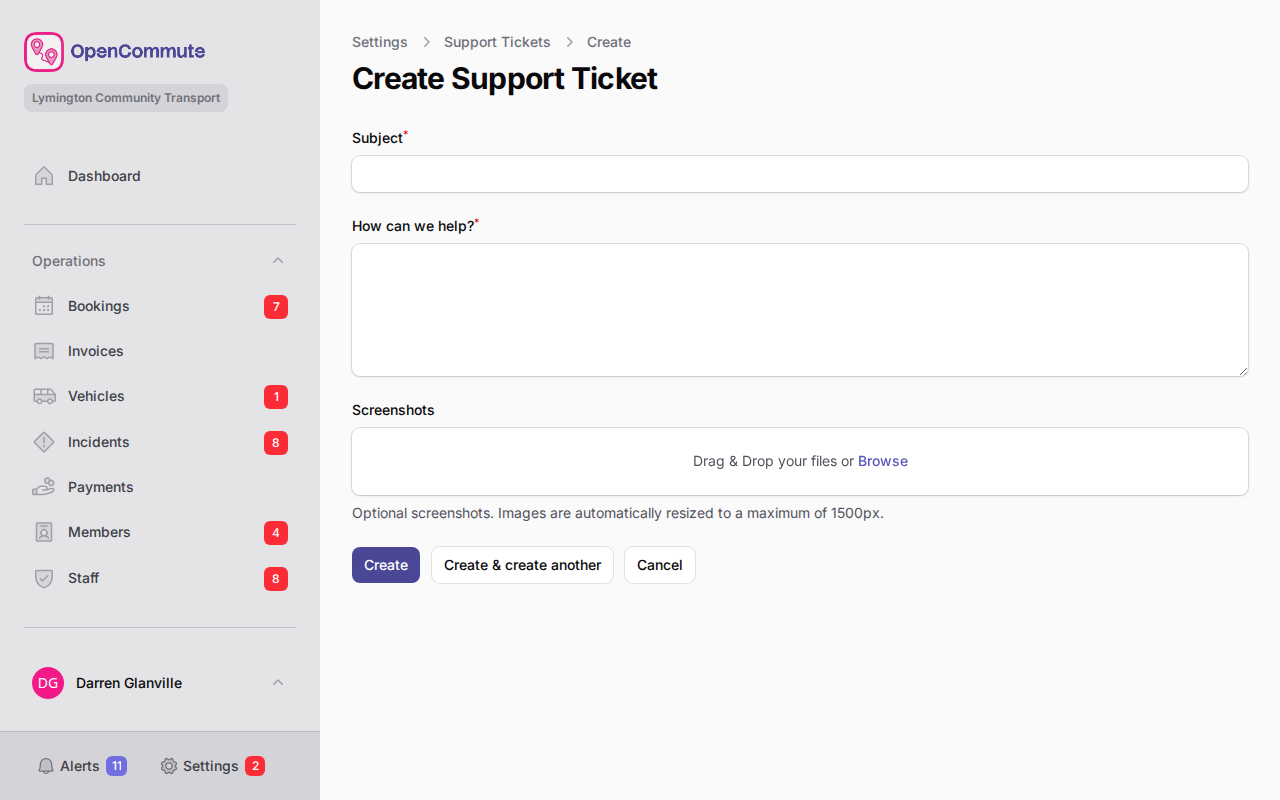 An example of the create support ticket form.
Include context
The more detail you add (which page you were on, what you expected, and any error messages), the faster we can help. Screenshots are especially useful.
After you create a ticket, you are taken to the ticket page where you can follow the conversation.
View your tickets
- Go to Settings > Support tickets, or Settings > Support and click View your tickets.
- Use the tabs to filter the list:
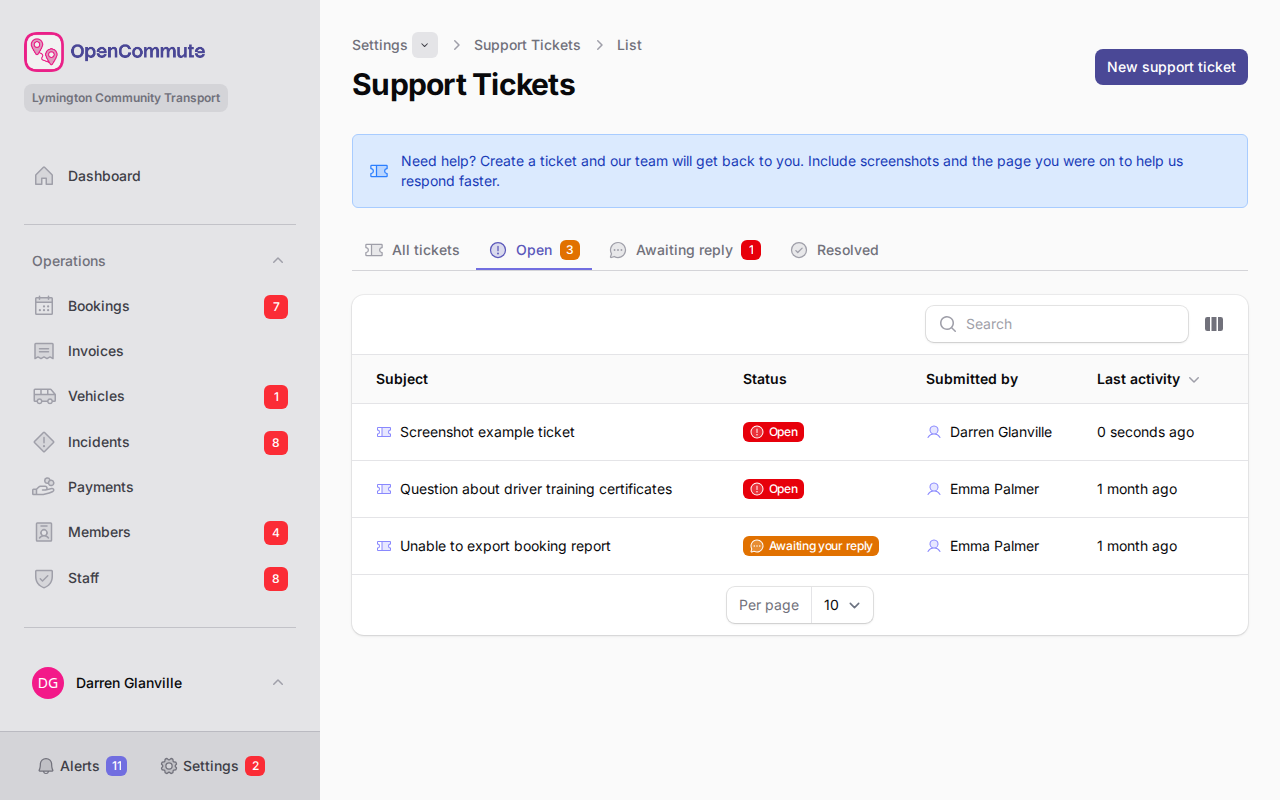 An example of the support tickets list showing open tickets.
| Tab | Shows |
|---|---|
| Open | Active tickets (default tab) |
| All tickets | Every ticket for your team |
| Awaiting reply | Tickets where support has replied and is waiting for you |
| Resolved | Closed and resolved tickets |
Each ticket shows its status:
| Status | Meaning |
|---|---|
| Open | Your ticket is with support |
| Awaiting your reply | Support has replied — open the ticket to read and respond |
| Resolved | Support marked the issue as resolved |
| Closed | The ticket was closed |
Click a ticket row to open the full conversation.
Each row also shows priority (Low, Medium, or High) and assignee. Assignee is empty until support takes the ticket. You cannot change priority after you create the ticket, and you cannot pick who is assigned.
Reply to a ticket
- Open the ticket from Settings > Support tickets.
- Read the conversation.
- Type your reply at the bottom.
- Press Enter to send, or Shift+Enter for a new line.
- Optionally show the screenshot upload to attach images to your reply.
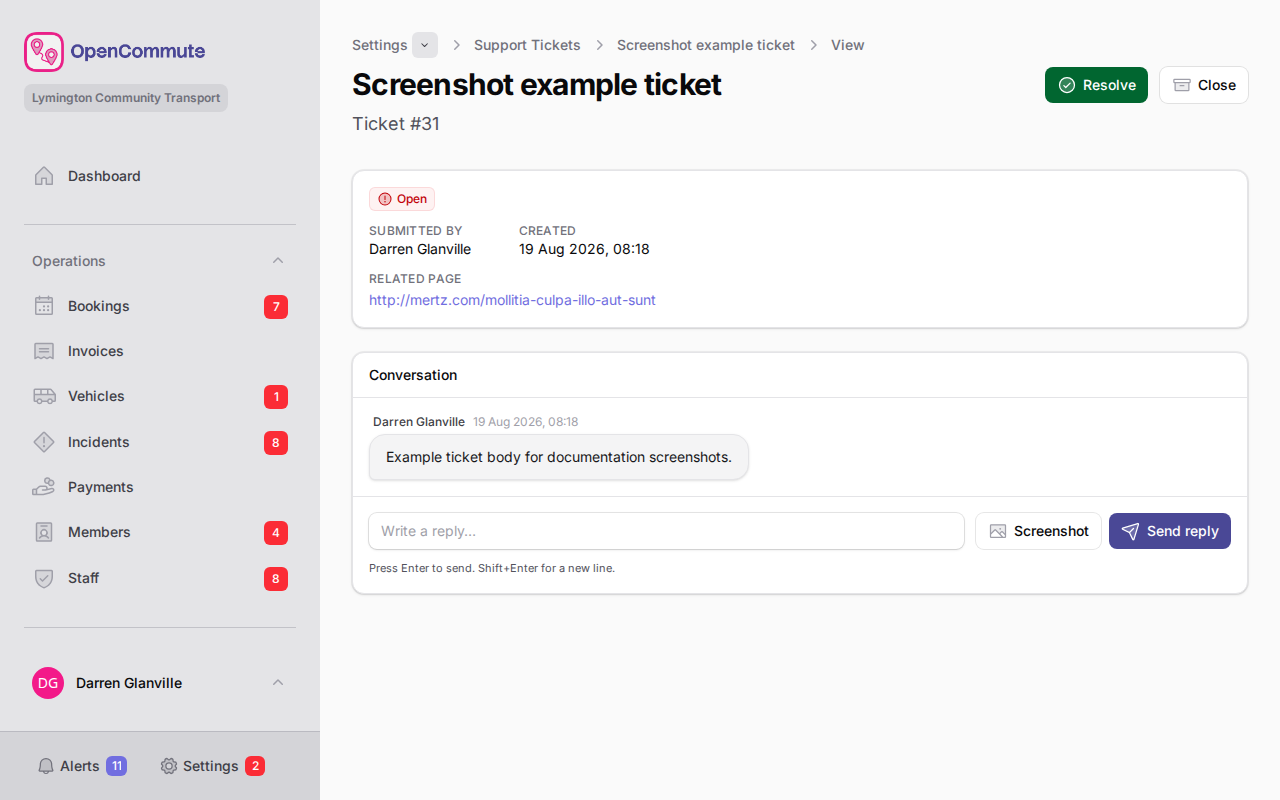 An example of a support ticket conversation with the reply box at the bottom.
Your reply is added to the conversation and support is notified.
Close or reopen a ticket
Close a ticket
When you no longer need help:
- Open the ticket.
- Click Close.
- Confirm in the dialog.
The ticket moves to Closed and you cannot add further replies until you reopen it.
Reopen a ticket
If you need more help on a closed or resolved ticket:
- Open the ticket.
- Click Reopen.
- Confirm in the dialog.
The ticket becomes Open again and you can reply.
Priority and assignee
When you create a ticket, choose Low, Medium, or High. Medium is the default. Support can change priority later. You cannot.
Support may assign the ticket to a member of the OpenCommute team. You will see the assignee on the ticket list and on the ticket page. You cannot assign or unassign a ticket.
When support replies
When support replies to your ticket:
- You receive an email notification.
- An in-app notification appears with a link to the ticket.
- The ticket status changes to Awaiting your reply.
- A badge may appear on Support tickets on the settings hub, on Support in the dashboard header, and on Settings in the footer until you have caught up.
Open the ticket from the notification or from Settings > Support tickets to read the reply and respond.
Related guides
- Support — search the knowledge base first
- Changing Billing Contact — who can manage billing and support tickets
- Subscription Plans — manage your subscription
- Dashboard and Onboarding — dashboard header actions including Support
- Team settings overview — team billing section and subscription links