

Appearance
Managing Checklists
Create training checklist templates that members and staff must complete before they can be assigned to bookings.
Admin access required
Only users with an Admin role can manage checklists in Settings.
View checklists
- Go to Settings.
- Click Checklists.
- Review the list of training templates for your team.
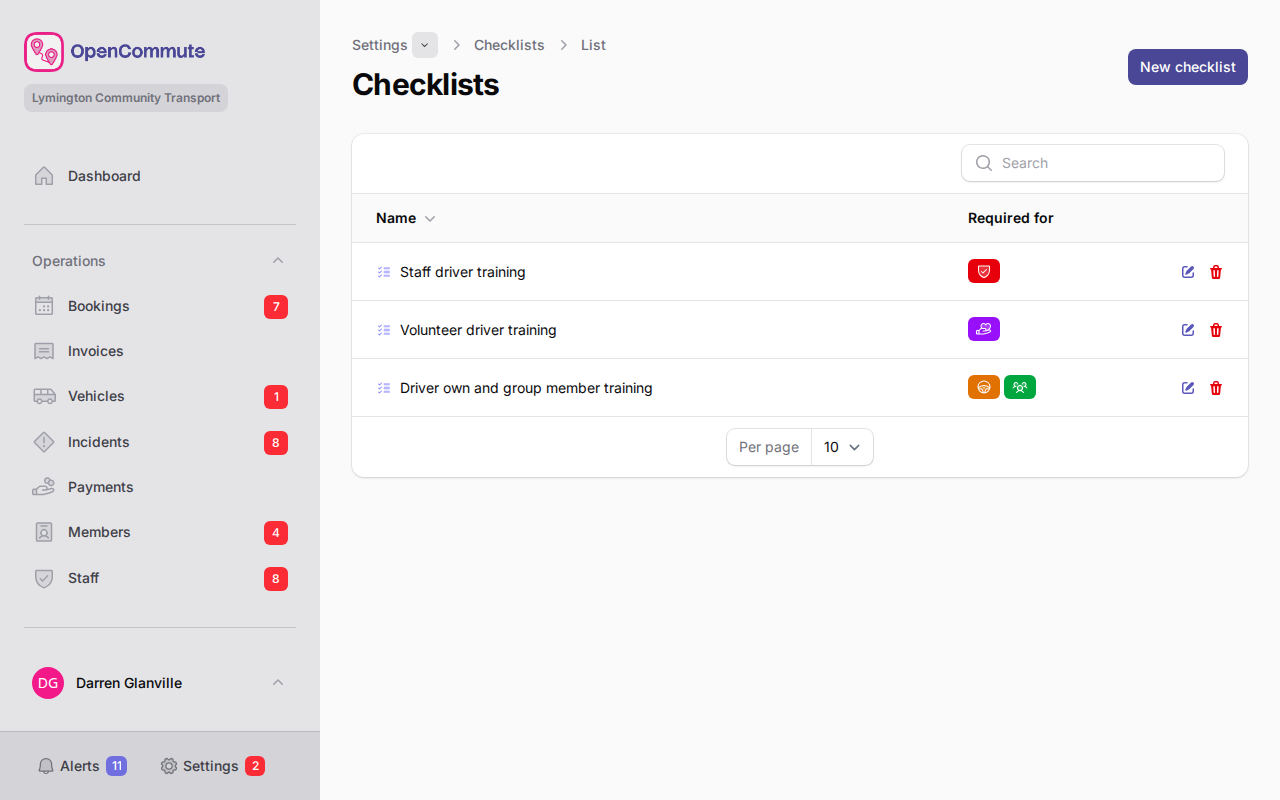 An example of the checklists list showing template names and member types.
Create a checklist
- Go to Settings.
- Click Checklists.
- Click Create.
- Enter Name and Description.
- In Required for, tick the member types this checklist applies to.
- In Items, add sections and checklist items using Add section and Add checklist item.
- Click Create.
Edit a checklist
- Open the checklist from the list.
- Update the name, description, required member types, or items.
- Click Save.
Match checklists to the right people
Assign each checklist only to the member or staff types that need that training — for example, a driving safety checklist for Staff driver and Volunteer driver on staff records.
Require training before assignment
Training checklists only block booking assignment when the team setting is turned on:
- Go to Settings.
- Click Options.
- Open the Members tab.
- Turn on Training must be complete before assignment?
- Click Save settings.
Members complete checklists on their Training tab — see Managing Members and Managing Staff.
Related guides
- Managing Members — complete training on member records
- Managing Staff — staff driver training
- Team settings overview — turn training requirement on or off