

Appearance
Managing Bookings
View upcoming bookings, filter by vehicle or type, and open the calendar to see your schedule at a glance.
View the bookings list
- Go to Bookings.
- Review upcoming bookings in the list view.
- Use the filters above the table to narrow results by:
- Vehicle
- Booking type
- Date range
- Upcoming only (enabled by default)
The list shows the booking reference, type, status, vehicle, and start/end times. Click a row to open that booking.
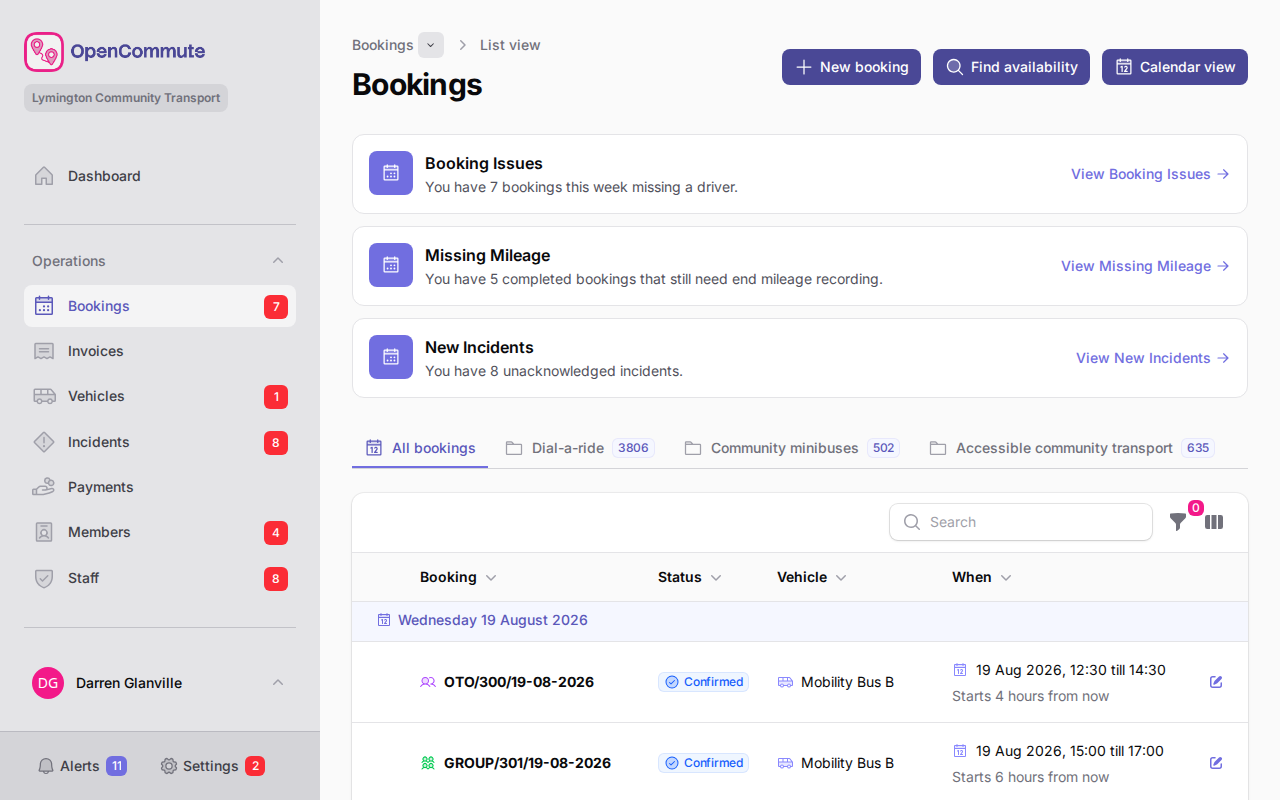 An example of the bookings list with filters above the table.
Use the calendar
- Go to Bookings.
- Open the Calendar tab.
- Use the same filters above the calendar to focus on a vehicle, booking type, or date range.
- Switch between Month, week, day, and timeline views using the calendar toolbar. Month shows bookings as labelled events in each day cell; hover for details and click to open a booking. Week, day, and timeline show vehicles on rows. Staff & Volunteers uses the timeline only.
- Click an event to open the booking.
- Choose Staff & Volunteers to plan staff and volunteer drivers on a timeline. Trips already assigned to a driver appear on their row. Open, Internal, One-to-One, and Group bookings that still need a driver appear on the Unassigned row and in the Need a driver list for the visible week. Drag a trip onto a driver row to assign them, or click a trip in Need a driver.
Bookings are colour-coded by type so you can quickly distinguish open runs, One-to-One trips, group bookings, and other types. Each booking group row uses the colour chosen for that group in Settings → Booking groups. Vehicles in the group use the same colour on their icon and in the vehicle popup, which names the group.
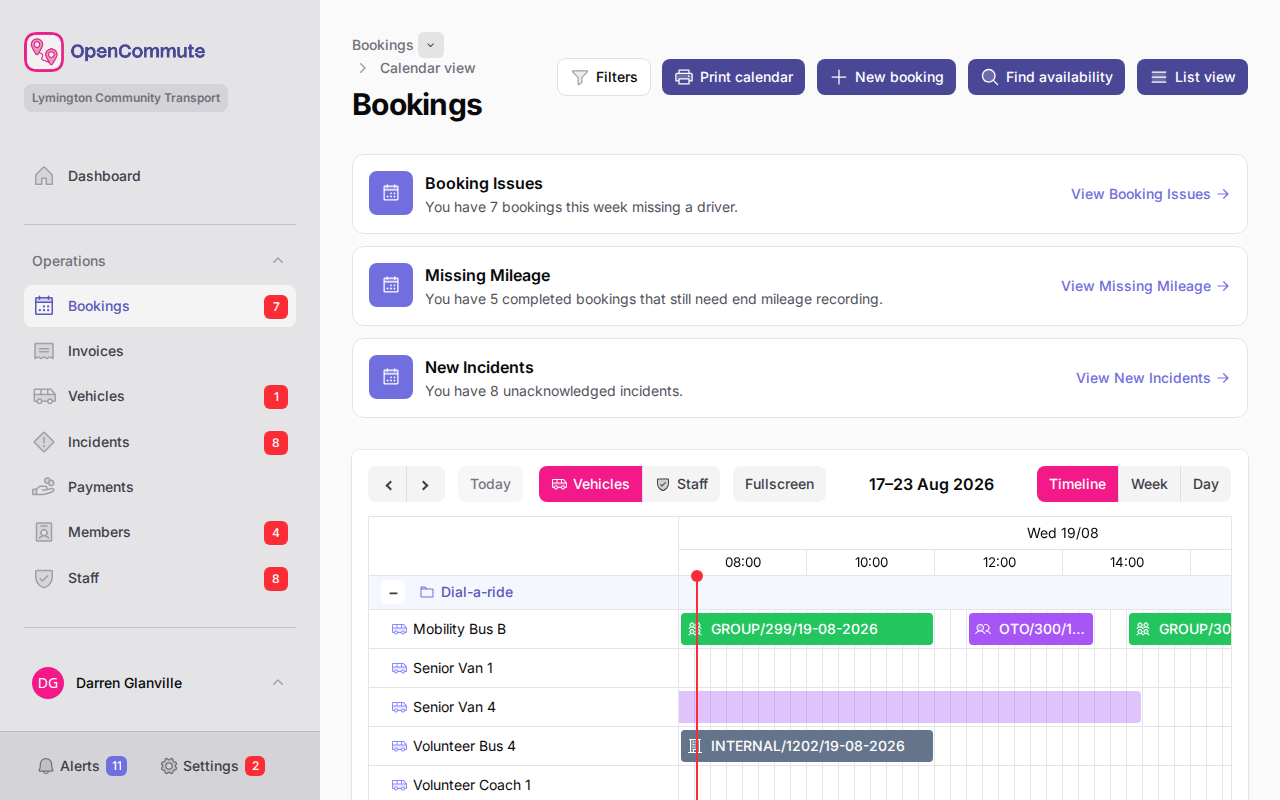 An example of the bookings calendar showing trips by type.
Create a booking
- Go to Bookings (list or calendar view).
- Click New booking.
- Select the Booking type, Vehicle, and schedule.
- Complete any type-specific fields shown below the main details.
- Save the booking.
From the calendar, you can also click or drag on an empty time slot to open the new booking form with the vehicle and times prefilled.
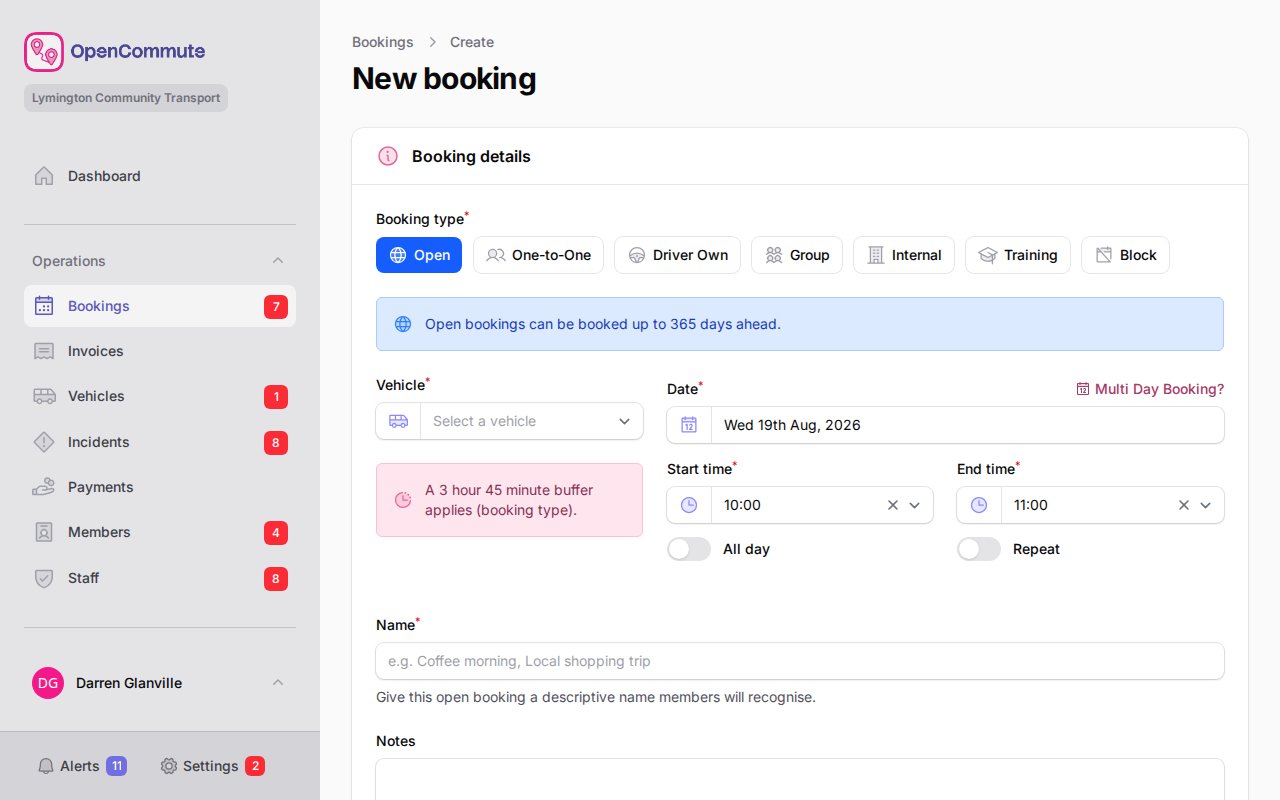 An example of creating a new booking from the list or calendar.
When creating a booking, the form may show a buffer notice and enforce a minimum gap between bookings on the same vehicle. See Booking Buffers for team defaults, vehicle overrides, and how enforcement works.
See Block Bookings for full guidance on block bookings, including reason presets and overlap rules.
See Internal Bookings for staff drivers, operating hours, and draft-to-confirmed behaviour.
See One-to-One Bookings for member trips, volunteer drivers, and creating return journeys with Reverse booking.
See Open Bookings for shared journeys with passengers and multi-stop routes.
See Group Bookings for organisation hire trips with optional drivers.
See Find Availability to search for free slots before creating a trip.
See Recurring Bookings for repeating series.
Open a booking
All booking types share one edit page. When you open a booking from the list or calendar, you can review and update the shared details. The booking type is fixed when the booking is created and cannot be changed later.
- Block — vehicle, schedule, reason, notes, status; see Block Bookings
- Internal — vehicle, schedule, optional staff driver, operating-hours limits; see Internal Bookings
- Open — vehicle, schedule, passengers, multi-stop route, staff driver; see Open Bookings
- Driver Own — driver member, expected mileage, cost preview; see Driver Own Bookings
- Group — organisation, mileage, optional driver; see Group Bookings
- One-to-One — member, route, volunteer driver, return trips; see One-to-One Bookings
Each booking edit page also includes tabs such as Passengers, Series, Invoices, Incidents, Notes, Activity log, and Options (cancel, reverse, invoice, request drivers). See Mileage and Invoicing for end mileage and invoicing.
When you create or edit an Open, Internal, One-to-One, or Group booking without the required volunteer or staff driver, OpenCommute can notify eligible drivers automatically or ask you first — depending on Driver requests on that booking type’s tab in Settings → Bookings. With Send automatically on, saving without a driver emails the preferred group (volunteers or staff drivers, whichever you listed first in settings) and sends an OpenCommute app notification when they use the app. People who have already been notified are not sent another request automatically. With automatic sending off, a prompt says no driver is assigned and asks whether to send request emails on every save while no driver is selected, including after Save without sending. Choose Who should we email? — Volunteers, Staff drivers, or both. The group selected first follows your driver request settings. The prompt includes a table of the members who will receive the emails, and a separate table of drivers who were already emailed. Confirm that emails will be sent before choosing Send request emails. To email those drivers again, turn on I confirm that request emails will be sent again to drivers who were already emailed — they receive fresh accept and decline links. Or choose Save without sending. You can also send requests from the missing-driver warning on the booking, or from Request drivers on the Options tab. Those always use the confirmation prompt. The activity log records whether the emails were sent or skipped, and when a volunteer or staff driver replies that they cannot take the booking.
If a driver’s availability changes and they are removed from confirmed bookings, Drivers removed from bookings asks what to do for each trip. Locked or finished bookings are not included. It opens on the Dashboard as well as the bookings calendar and list until you save a decision, including after you sign out and back in. Besides replacing the driver, cancelling, or leaving the booking driverless, you can choose Request drivers and tick Request volunteers and/or Request staff drivers. Open, Group, Internal, and One-to-One all offer both options. The group listed first follows Driver requests on that booking type’s tab in Settings → Bookings. Requesting emails eligible people with accept and decline links and leaves the booking without a driver. Cancelling asks for a reason, records it on the booking Activity log, and sends the same cancellation email as Options → Cancel booking — passengers, the requesting member, an assigned driver if still set, and the organisation’s invoice emails on Group bookings. Passengers, the requesting member, and an assigned driver who use the OpenCommute app also get a device notification that opens their bookings. On training bookings, the trainer and linked attendees get that notification too. Choose Apply decisions when you have chosen what to do for each booking.
Cancelled bookings
Cancelled bookings stay on the list and calendar. Open one to see a notice explaining why it was cancelled. The same wording appears on the list indicator and calendar tooltip.
- Someone cancelled it — This booking has been cancelled by [name]. [reason] This is used when a team member clicks Cancel booking on Options, including when they cancel one occurrence or the rest of a series. The reason they entered is stored on the booking Activity log.
- Unconfirmed draft — This booking has been cancelled. It was not confirmed before the auto-cancel deadline.
- Member subscription lapsed — This booking has been cancelled. The member is not subscribed. Used for One-to-One and Driver Own bookings.
- Organisation subscription lapsed — This booking has been cancelled. The organisation is not subscribed. Used for Group bookings.
Auto-cancel sends the same cancellation email as a manual cancel to passengers, the requesting member, an assigned driver if still set, and the organisation’s invoice emails on Group bookings. Passengers, the requesting member, and an assigned driver who use the OpenCommute app also get a device notification that opens their bookings. On training bookings, the trainer and linked attendees get that notification too. The email panel shows the booking ID, the booking name if one is set, and the start and end times. When the booking has no remaining payable or paid invoices, it also states that you will not be charged.
Set the auto-cancel window in Team settings overview. When that setting is Off, bookings with a lapsed subscriber are warned but not cancelled. Open bookings are not cancelled for a lapsed passenger — that passenger is removed instead. If they already had an early invoice, it is handled like a manual remove: voided before the invoice period starts, with any payment moved to account credit. If that deadline has already passed, opening the booking applies the same change immediately.
When auto-cancel is on, you cannot create a new draft booking (or a member draft request from the OpenCommute app) with a start in that period — unconfirmed drafts are cancelled automatically that long before the journey starts. Choose a date and time further ahead. Block bookings are not affected.
To cancel a booking yourself, open Options and click Cancel booking. Enter a reason — it appears on the cancelled notice and the booking Activity log. Passengers, the requesting member, and an assigned driver who use the OpenCommute app also get a device notification that opens their bookings. On training bookings, the trainer and linked attendees get that notification too. For a repeating series, enter the reason, then choose this occurrence or this and all future occurrences — see Recurring Bookings.
List indicators
The bookings list may show badges for items that need attention — for example missing mileage, invoicing due, insufficient minimum places on open bookings (using the vehicle minimum or a booking override), or new incidents. The calendar and list show a Need a driver alert when upcoming trips still need a staff or volunteer driver; Open Staff & Volunteers opens the bookings calendar in Staff & Volunteers view. The dashboard bookings card and Bookings in the sidebar show a red badge with the same count. Incomplete open route member assignments stay under Booking issues. These items also appear on the Alerts page.
Filter tips
- Turn off Upcoming only to include past bookings in the list.
- Set a Date range to focus on a specific week or month.
- Combine vehicle and booking type filters to see, for example, all upcoming group bookings for one vehicle.
Permissions
Users with view-only access can browse bookings and the calendar. Users with create or update access can add and edit bookings.