

Appearance
Booking Buffers
A booking buffer is the minimum gap required between bookings on the same vehicle. It helps leave turnaround time for cleaning, fuelling, or driver changeovers.
Buffers are enforced when you create or edit a booking on the same vehicle.
How buffers work
- Team default — set in Settings > Bookings > General > Buffers
- Booking type override — optional on that booking type’s tab
- Vehicle override — optional per vehicle on the vehicle Details tab
Resolution order when creating a booking:
- Vehicle override (if set)
- Booking type override (if set)
- Team default
If a vehicle has no override and the booking type has no override, the team default applies. Choose None at any level to allow back-to-back bookings for that scope.
Available gaps run from 15 minutes to 4 hours in 15-minute steps.
Set the team default
Admin access required
Only users with an Admin role can change team buffer settings in Settings > Bookings.
- Go to Settings > Bookings.
- Open the General tab.
- In Buffers, choose Default booking buffer.
- Pick None or a gap from the dropdown.
- Click Save settings.
New vehicles and booking types inherit this setting until you give them an override.
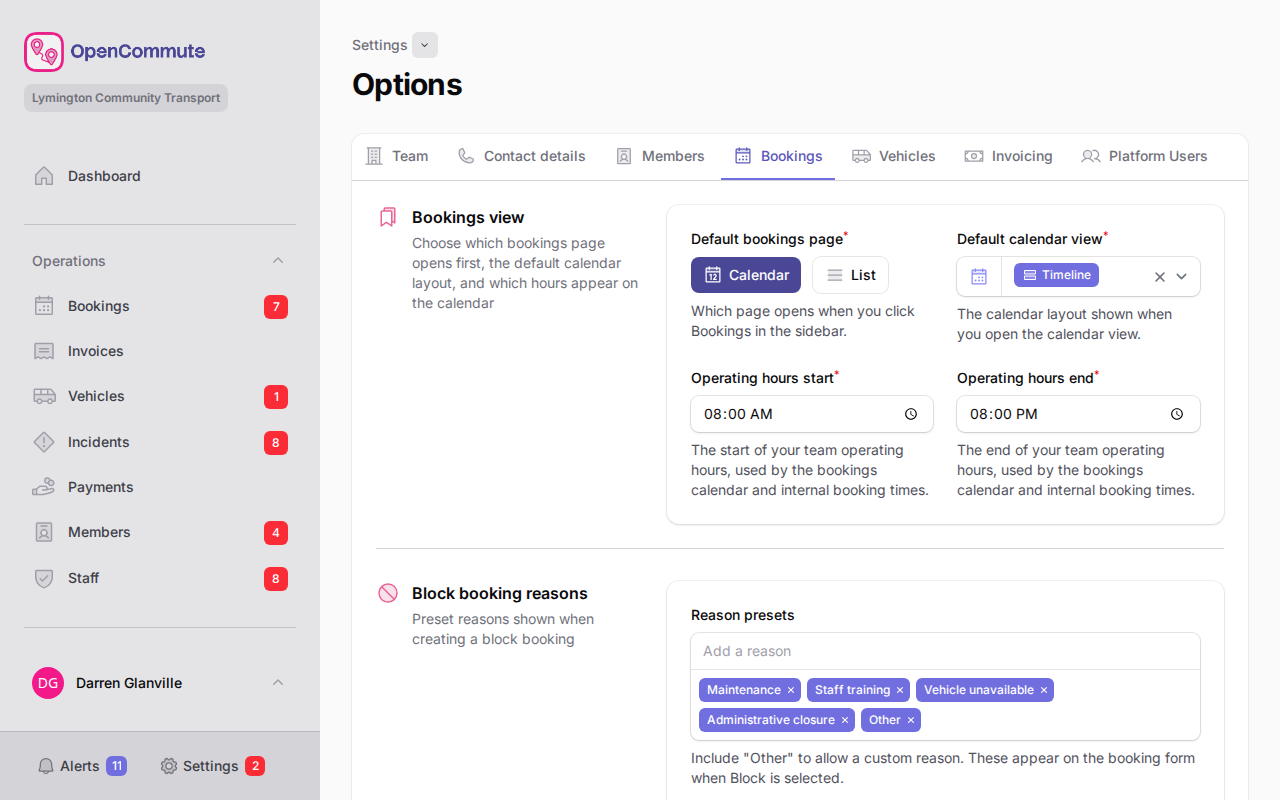 An example of setting the team default booking buffer in Options.
Override by booking type
Use a type override when one booking type needs different turnaround time from the team default.
- Go to Settings > Bookings.
- Open the booking type’s tab.
- In Scheduling, choose a Booking buffer, or leave Use team default.
- Click Save settings.
Vehicle overrides still take priority over type overrides.
Override on a vehicle
Use a vehicle override when one vehicle needs different turnaround time from the rest of the fleet.
- Go to Vehicles and open the vehicle.
- On the Details tab, open Scheduling and pricing.
- In Booking buffer:
- Leave Use default - … selected to inherit the team/type setting, or
- Choose None or a specific gap to override.
- Click Save.
When to override
Set a longer buffer for vehicles that need more turnaround time. Set None on a vehicle if it can take back-to-back bookings even when the team default requires a gap.
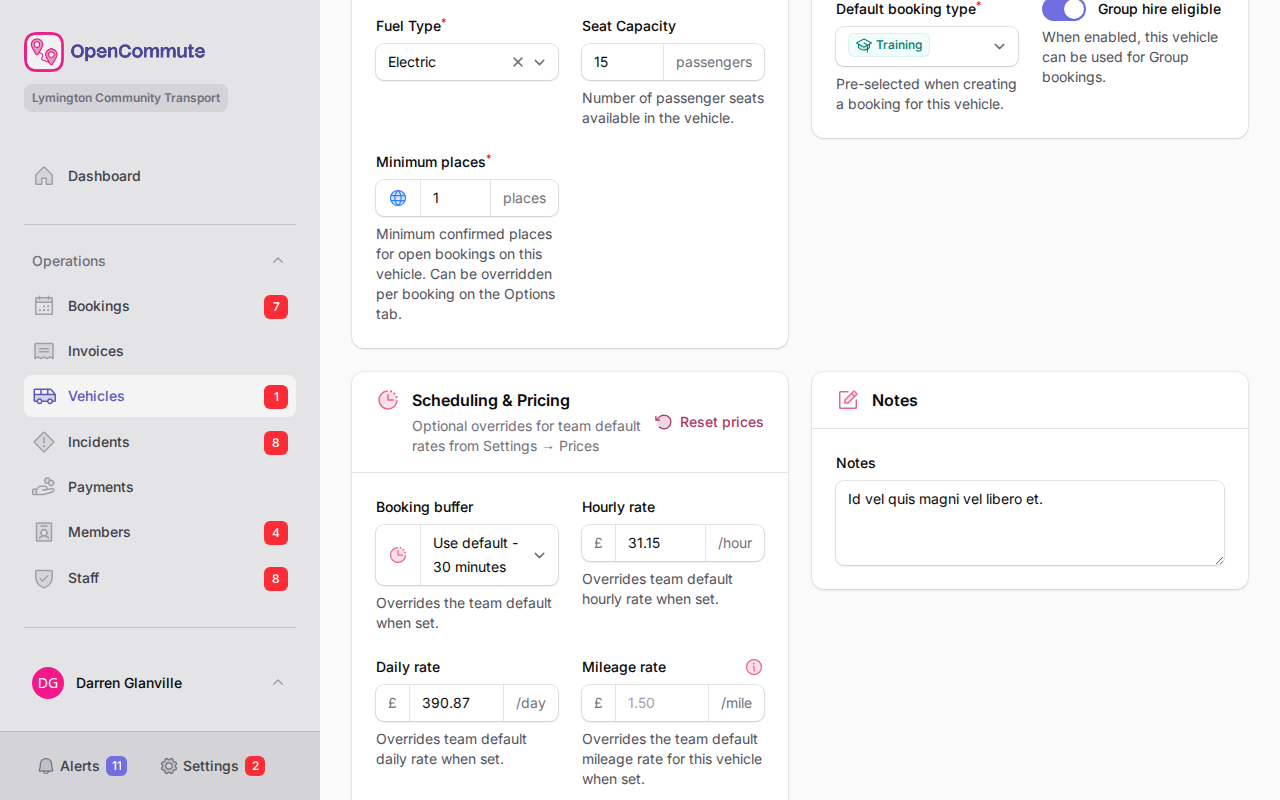 An example of overriding the booking buffer on a vehicle record.
Where overrides appear
- Vehicles list — the Name column shows the buffer below the vehicle name when it differs from the team default (for example 30 minute buffer).
- New booking form — the vehicle dropdown shows the same label for vehicles with an override.
- Booking form notice — after you select a vehicle, a notice below the field explains which buffer applies (team default, booking type, or vehicle override).
Buffers when creating or editing a booking
- Go to Bookings and create a booking or open an existing one.
- Select a Vehicle and booking type.
- If a buffer applies, a notice appears below the vehicle field — for example A 30 minute buffer applies (team default). or A 1 hour buffer applies (booking type).
- Set the Schedule as usual.
If the chosen time falls inside the buffer gap after another booking on that vehicle, the form blocks the save:
- Most users see a validation error and must adjust the times.
- Users with Override booking buffer permission (Admin has this by default) see a confirmation modal explaining the conflict. They can enable Override buffer restriction to proceed. Direct overlaps cannot be overridden — only buffer-gap violations.
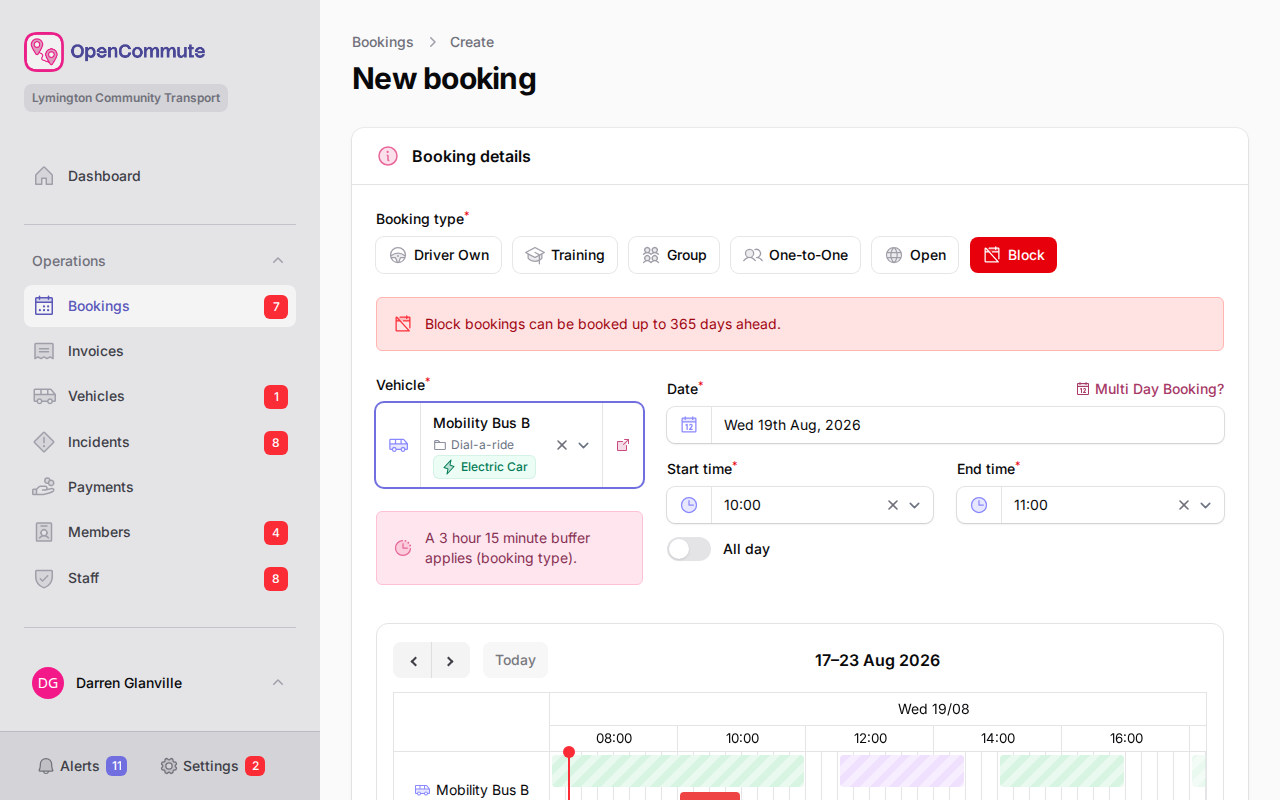 An example of the buffer notice shown when creating or editing a booking.
Overrides are recorded in the booking Activity log tab.
Back-to-back bookings
When the effective buffer is None, bookings can start exactly when the previous one ends. See Block Bookings for general overlap rules.
Related settings
- Team settings overview — calendar display hours, advance booking windows, visibility, and billing buffer
- Managing Vehicles — vehicle details and scheduling overrides
- Managing Bookings — list, calendar, and creating bookings
See also: dial-a-ride scheduling