

Appearance
Managing Booking Groups
Group vehicles together for clearer calendar views, filters, and reports — for example, all minibuses in one group.
Admin access required
Only users with an Admin role can manage booking groups in Settings.
View booking groups
- Go to Settings.
- Click Booking groups.
- Review the list of groups and linked vehicles.
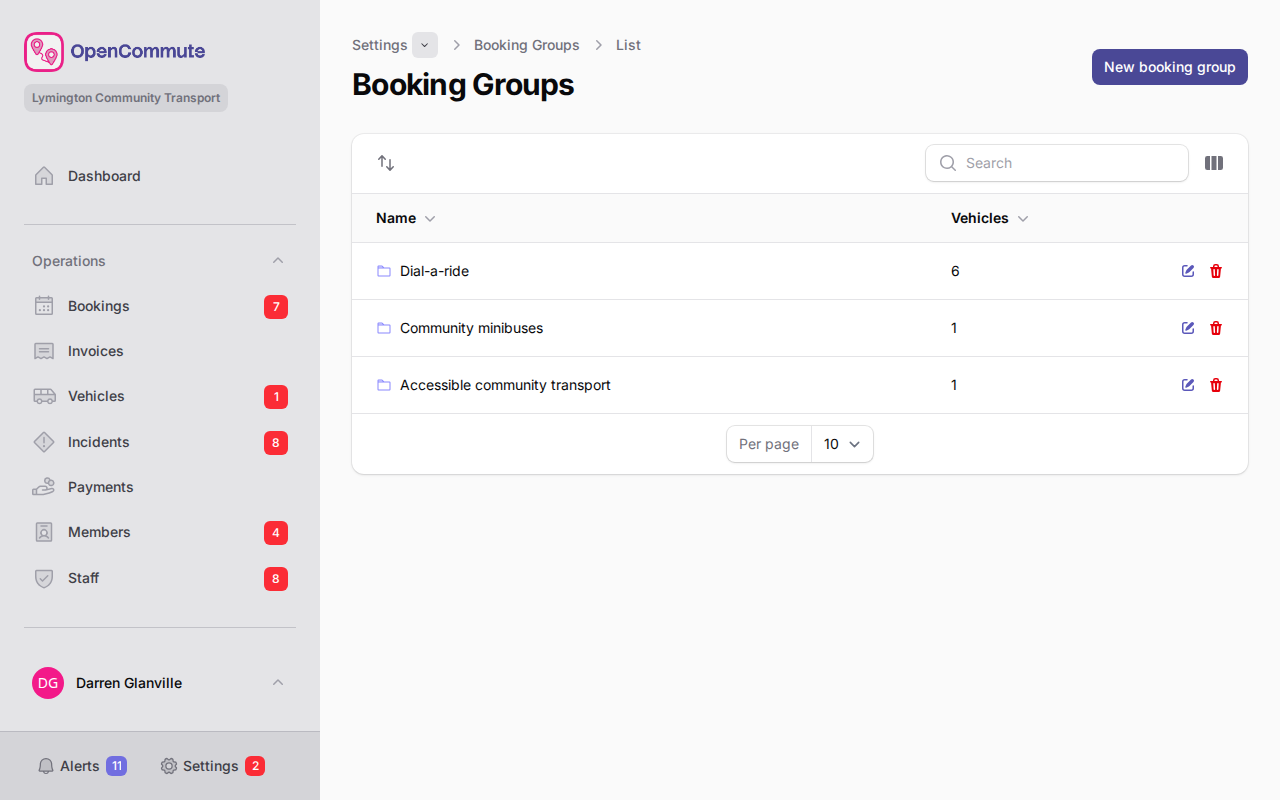 An example of booking groups with linked vehicles.
Create a booking group
- Go to Settings.
- Click Booking groups.
- Click Create.
- Enter Name, choose a Colour, and enter a Description.
- In Vehicles, select the vehicles to include.
- Click Create.
The colour tints that group's row on the bookings calendar. Vehicles in the group use the same colour on their calendar icon and in the vehicle popup.
You can also create a group while adding or editing a vehicle: open the vehicle form, click the plus icon next to Booking group, enter a name and colour, and save the vehicle.
Edit a booking group
- Open the group from the list.
- Update the name, colour, description, or vehicle selection.
- Click Save.
Use groups for large fleets
Booking groups help when you filter the calendar or run vehicle reports for one part of your fleet.
Where groups appear
- Bookings calendar — filter by booking group, with each group's colour on its row and on the vehicles in that group
- Bookings list — filter by booking group
- Reports — some vehicle and booking reports respect group filters
Related guides
- Managing Vehicles — add vehicles before linking them to a group
- Managing Bookings — filter the calendar and list by group
- Reports Overview — printable fleet and booking reports