

Appearance
Mileage and Invoicing
Record start and end mileage on completed trips and create invoices when bookings are ready to bill.
Record mileage
When a booking is completed, enter the vehicle's start and end mileage so your records stay accurate.
- Open the booking from the list or calendar.
- On the Details tab, find Mileage recording.
- Check Start mileage. It is filled from the previous reading for that vehicle. Change it when this trip started at a different reading.
- Enter End mileage.
- Click Save.
Start and end mileage
Start mileage defaults to the previous reading for the vehicle. Saving a different start does not change the end mileage already recorded on earlier bookings. End mileage must be equal to or greater than the start mileage on this booking. Miles driven are the difference.
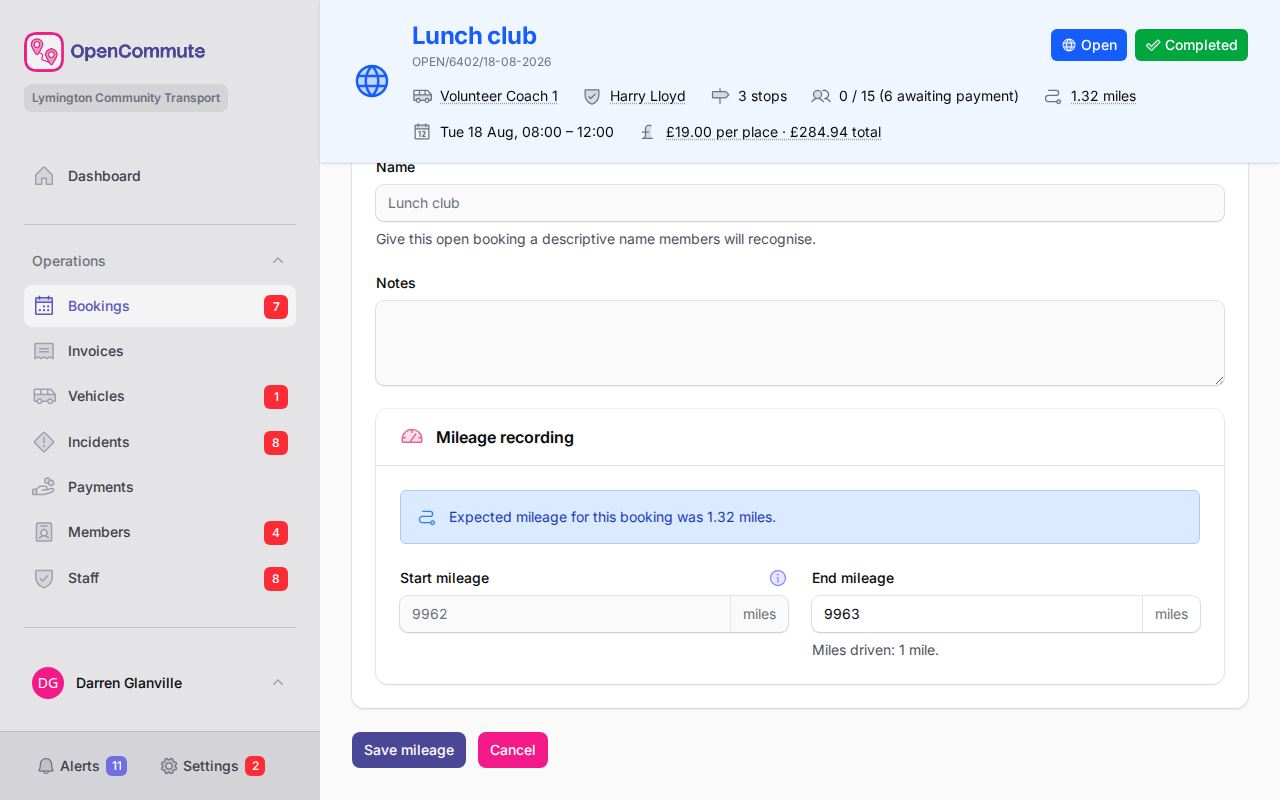 An example of recording end mileage on a completed booking.
After the booking is invoiced, it locks and mileage can no longer be changed. See Team settings overview for Billing buffer settings.
Training bookings use the same Mileage recording section when a vehicle is assigned. Billable mileage follows your team Invoice mileage basis setting.
Billable bookings stay editable until they are invoiced, even after the billing buffer period ends.
Invoice a booking
When a billable booking is ready, create an invoice from the booking itself.
- Open the completed booking.
- Go to the Options tab.
- Click Invoice (or Invoice early if shown before the normal lock date).
- Review the bill-to preview and totals.
- Click Create invoice (or Create invoices for open bookings with multiple charged members).
Booking locks after invoicing
After invoicing, the booking is locked and cannot be edited. Check mileage and details before you invoice.
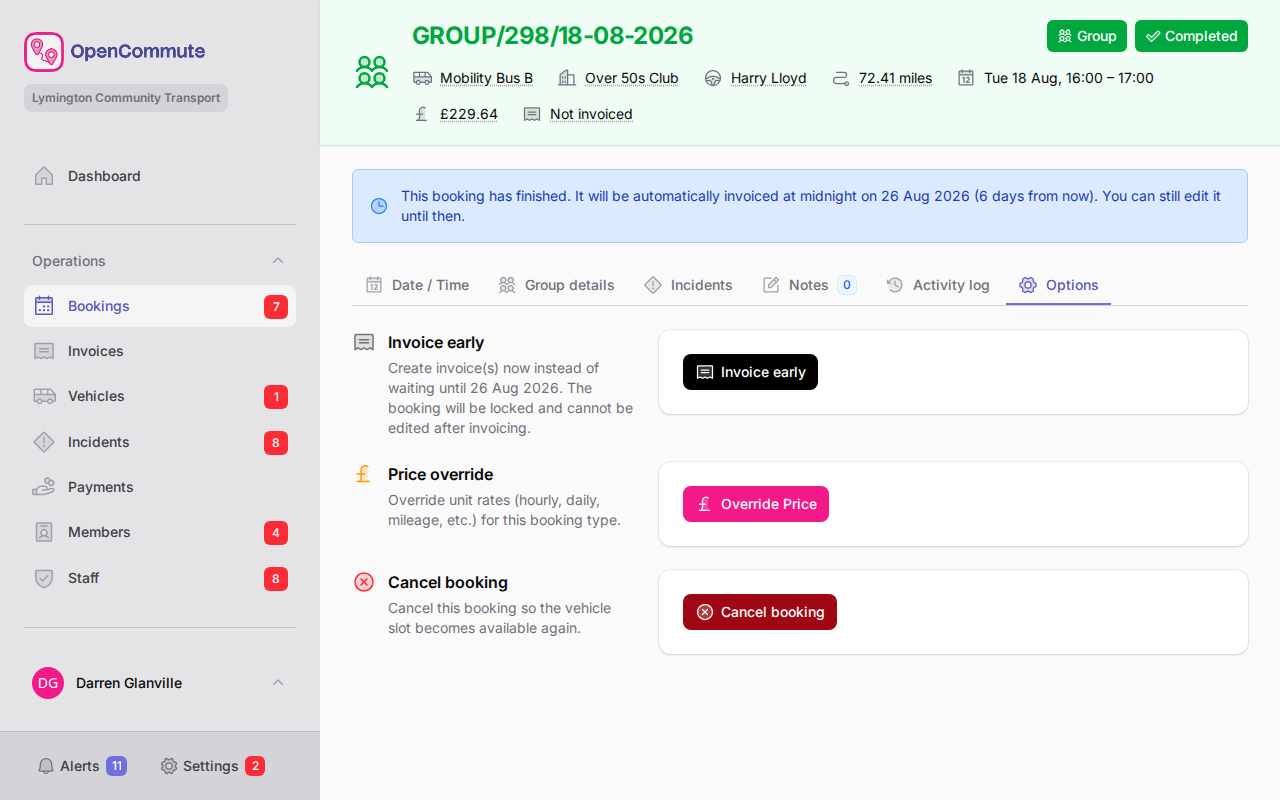 An example of creating an invoice from a completed booking.
Invoice early
If you have permission to create invoices, you may see Invoice early on the Options tab:
- One-to-One bookings while they are Confirmed (driver assigned, before the trip). The invoice uses the current route estimate. After the trip completes, invoicing is automatic at the billing buffer unless you already invoiced.
- Driver Own and Group bookings while they are Confirmed (before the trip). The invoice uses the expected mileage and cost on the booking. When Charge members / pre-payment is on, an advance invoice is created at confirmation instead.
- Other billable booking types before the billing buffer ends, while the booking is Completed. A notice on the booking shows when it would normally be invoiced at midnight.
Early invoicing locks the booking immediately — use it only when you are sure the trip details are final.
For Open bookings with Charge members turned on, you can invoice individual members from the booking Members tab using Invoice member or Invoice all members — before the journey, after completion, or any time a member still needs an invoice. See Open Bookings — Invoicing members.
Open booking invoices
For Open bookings with Charge members turned on, invoicing creates one invoice per charged passenger.
Before the journey
- Members are invoiced automatically according to the Invoice period (team setting; default 1 week before the journey).
- Use Invoice member or Invoice all members on the Members tab to invoice earlier if needed.
- Each member is billed the per-place share of the booking total (total ÷ vehicle seat capacity). See Open Bookings — Per-place pricing.
- If you remove a member during the invoice period, their invoice stays due. If you remove them before the period starts, unpaid invoices are voided and any payment becomes account credit. See Open Bookings — Remove a member.
After completion
- Use Invoice or Invoice early on the Options tab to create any remaining member invoices after the trip, following the normal billing buffer rules.
Member totals and booking total
Member invoices use per-place pricing: the booking total is divided by the vehicle’s seat capacity, rounded to the nearest penny, and the same amount is applied to every member.
Because of rounding, the combined member invoice totals may be slightly more or less than the booking calculated total. For example, £10.03 on a 5-seat vehicle becomes £2.01 per place (£10.05 in total across five members).
See Open Bookings — Per-place pricing for more detail.
View linked invoices
- Open the booking.
- Go to the Invoices tab.
From here you can open invoices created from this booking.
Missing mileage alerts
Bookings that need end mileage appear in list indicators and on the Alerts page. Use the Missing mileage filter on the bookings list to find them quickly.
Print a mileage report
- Go to Insights → Reports.
- Open Mileage.
- Set the date range (defaults to this month) and optionally filter by vehicle, booking type, or driver.
- Review estimated, recorded, expected vs recorded, billable, and invoiced miles, then Print or Export CSV.
Trips still missing end mileage are listed so totals are not silently incomplete. Billable miles follow your team Invoice mileage basis setting. See Reports Overview.
Related guides
- Managing Invoices — send, void, and share invoice links
- Open Bookings — charge members on shared journeys
- Driver Own Bookings — expected mileage at booking time
- Group Bookings — organisation billing
- Team settings overview — billing buffer and invoicing defaults
- Reports Overview — printable Mileage report