

Appearance
Driver Own Bookings
Driver own bookings are billable vehicle-hire trips for Driver member members. The driver member hires the vehicle, enters the expected mileage from the vehicle home location, and sees a per-mile cost preview during booking.
Booking lifecycle
The diagram below shows what happens from creating the booking through to invoicing and payment, including notifications sent along the way. Click the diagram to zoom in.
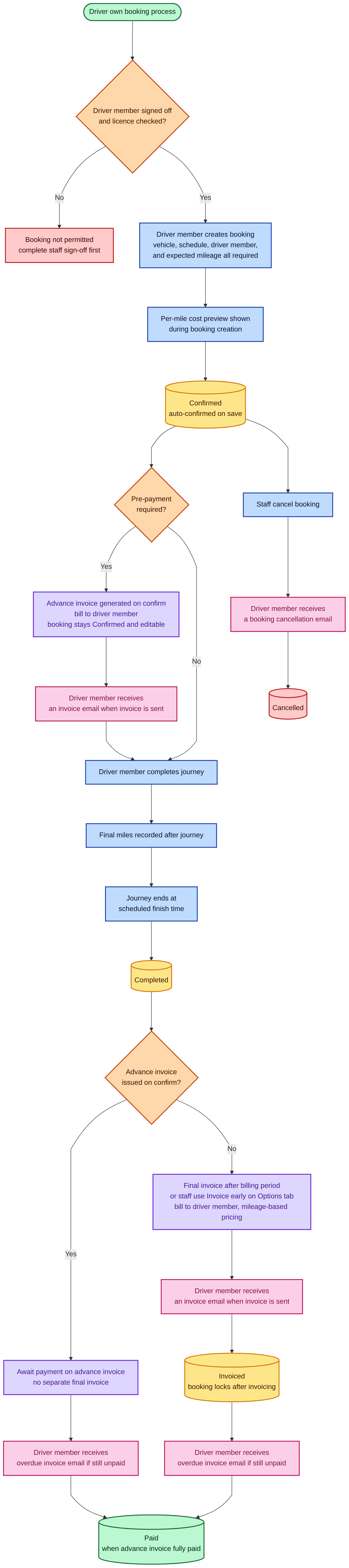
The driver own booking lifecycle from creation through to payment.
Create a driver own booking
- Go to Bookings.
- Click New booking on the list or calendar view.
- Select Driver Own as the booking type.
- Choose a Vehicle that allows driver own bookings and set the Schedule (date plus start and end times).
- In Driver Own details, select the Driver member (they need a paid subscription for the trip date) and enter the Expected mileage for the hire from the vehicle home location (shown side by side). If that subscription later lapses, the booking warns that the member is not subscribed. When draft auto-cancel is on, the booking is cancelled in the same window as unfinished drafts, and the notice says The member is not subscribed.
- Review the estimates bar (expected mileage, vehicle home, and estimated cost) as you enter mileage — use the info icon on estimated cost to see how it is calculated — then add optional Notes and save.
You can also create a driver own booking from the calendar by clicking or dragging on an empty time slot, then choosing Driver Own before saving.
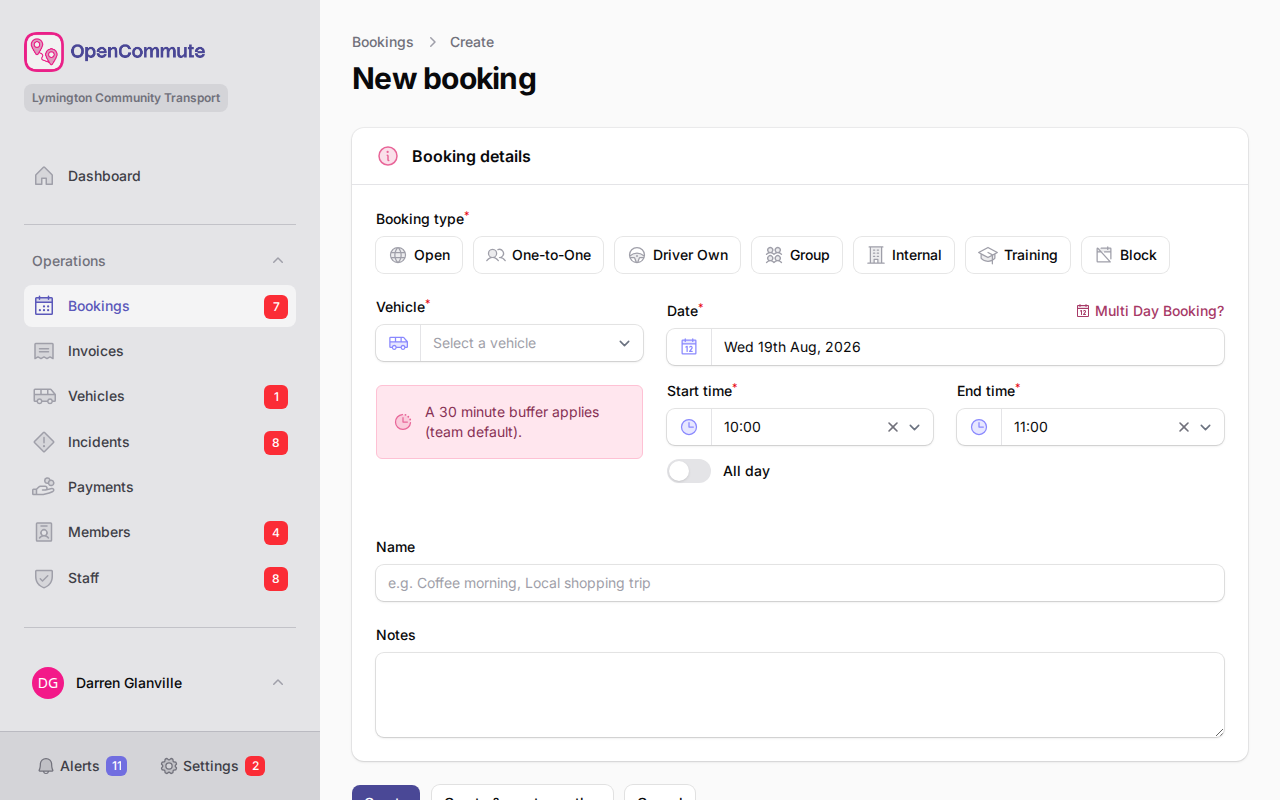 An example of creating a driver own booking with mileage and cost preview.
Driver members
A Driver member is required for every driver own booking, along with expected mileage.
- When you save a valid booking with both fields, the booking is Confirmed automatically.
- Driver own bookings cannot be saved without a driver member or expected mileage.
Driver members are managed under Operations → Members. Only active members with the Driver member type appear on the booking form.
Eligibility
A driver member can only be selected when they are:
- Signed off for driving
- Licence-checked with a valid pass outcome
- Licensed for the selected vehicle category (when a vehicle is chosen)
- Training-complete, when your organisation requires driver training
Ineligible members appear in the list but cannot be selected.
Driver overlap prevention
The same driver member cannot be booked for overlapping trips across internal, open, one-to-one, or driver own bookings. If you select a driver who is already assigned elsewhere during the chosen time, the form shows a validation error.
Vehicle overlap rules and booking buffers still apply in the usual way. See Managing Bookings.
Expected mileage and cost preview
Driver own bookings do not use a pickup and drop-off map.
- The form shows the vehicle home location (from the vehicle record, or your team default) in the estimates bar below the form fields.
- Enter the expected total mileage for the hire starting from that home location.
- The estimates bar shows expected mileage, vehicle home, and estimated cost live as you enter mileage — use the info icon on Estimated cost to see how it is calculated.
- Both values are stored on the booking when you save.
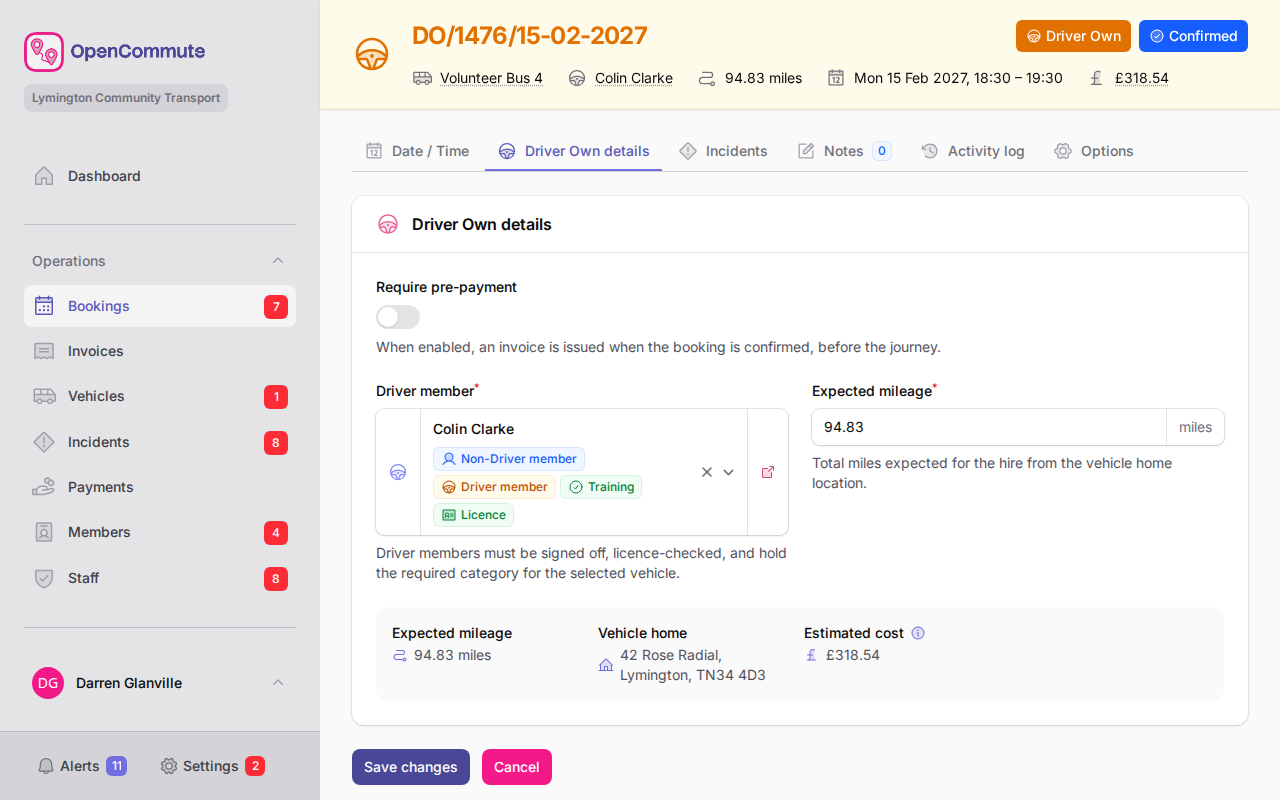 An example of the expected mileage and estimated cost preview on a driver own booking.
Final mileage is recorded on the booking after the trip. Invoicing is handled from the booking Options tab — see Mileage and Invoicing.
Edit or cancel a driver own booking
- Open the booking from the list or calendar.
- Use Details for the vehicle, schedule, and notes.
- Use Driver Own details for the driver member, expected mileage, and cost preview.
- To cancel the booking, open Options and click Cancel booking. The notice then shows who cancelled it. Other cancellation reasons are listed in Managing Bookings.
The booking type is fixed after creation and cannot be changed on the edit page.
Related
- Managing Bookings — list, calendar, and filters
- Booking Buffers — gaps between bookings on the same vehicle