

Appearance
Internal Bookings
Internal bookings reserve diary time for staff or operational use. They are non-invoiced and can optionally include a staff driver.
Booking lifecycle
The diagram below shows what happens from creating the booking through to completion, including notifications sent along the way. Click the diagram to zoom in.
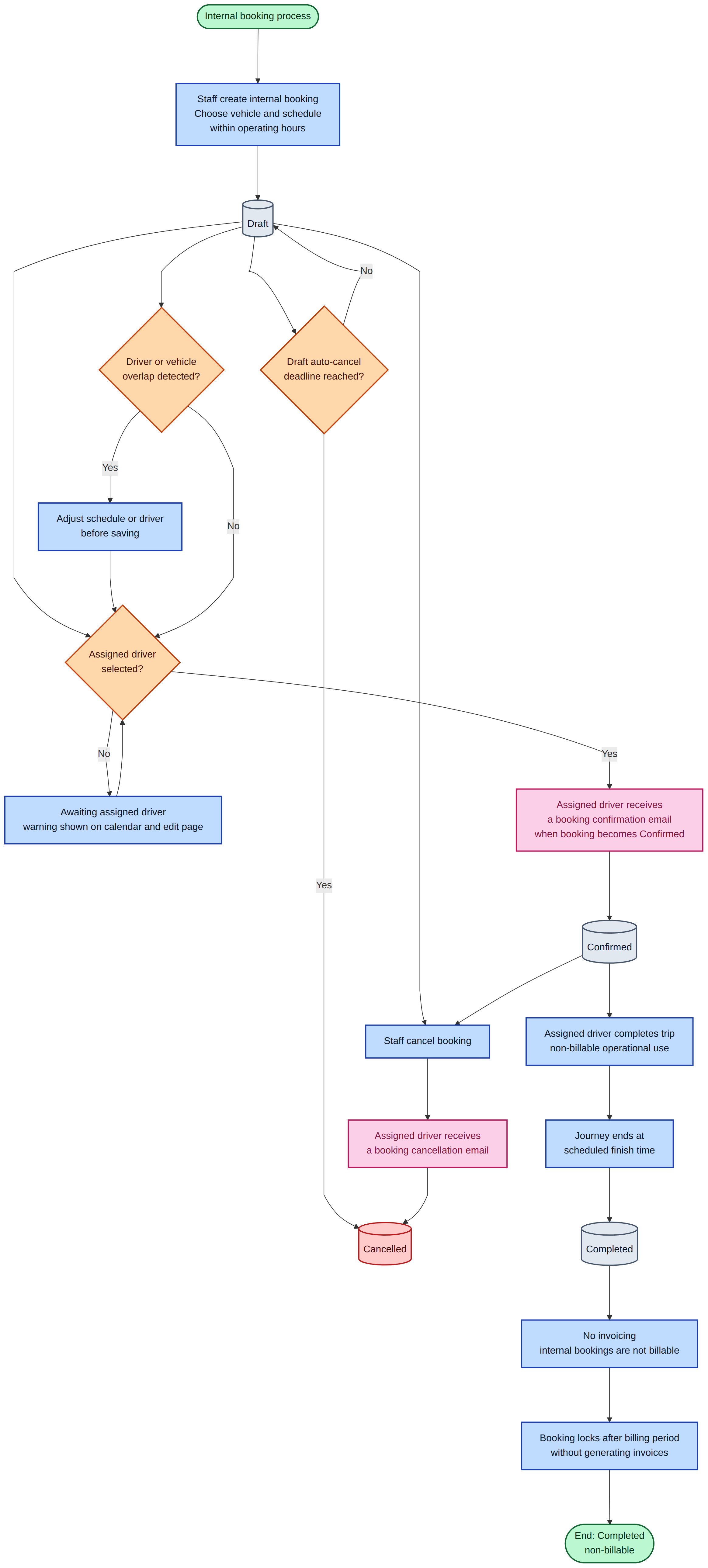
The internal booking lifecycle from creation through to completion.
Create an internal booking
- Go to Bookings.
- Click New booking on the list or calendar view.
- Select Internal as the booking type.
- Choose the Vehicle and set the Schedule (date plus start and end times).
- Open the Internal details tab to optionally assign a staff driver.
- Add optional Notes, then save.
When Internal is selected, a notice below the vehicle field explains that booking times are limited to your team operating hours. Configure those hours in Settings → Options → Bookings — see Updating Options.
You can also create an internal booking from the calendar by clicking or dragging on an empty time slot, then choosing Internal before saving.
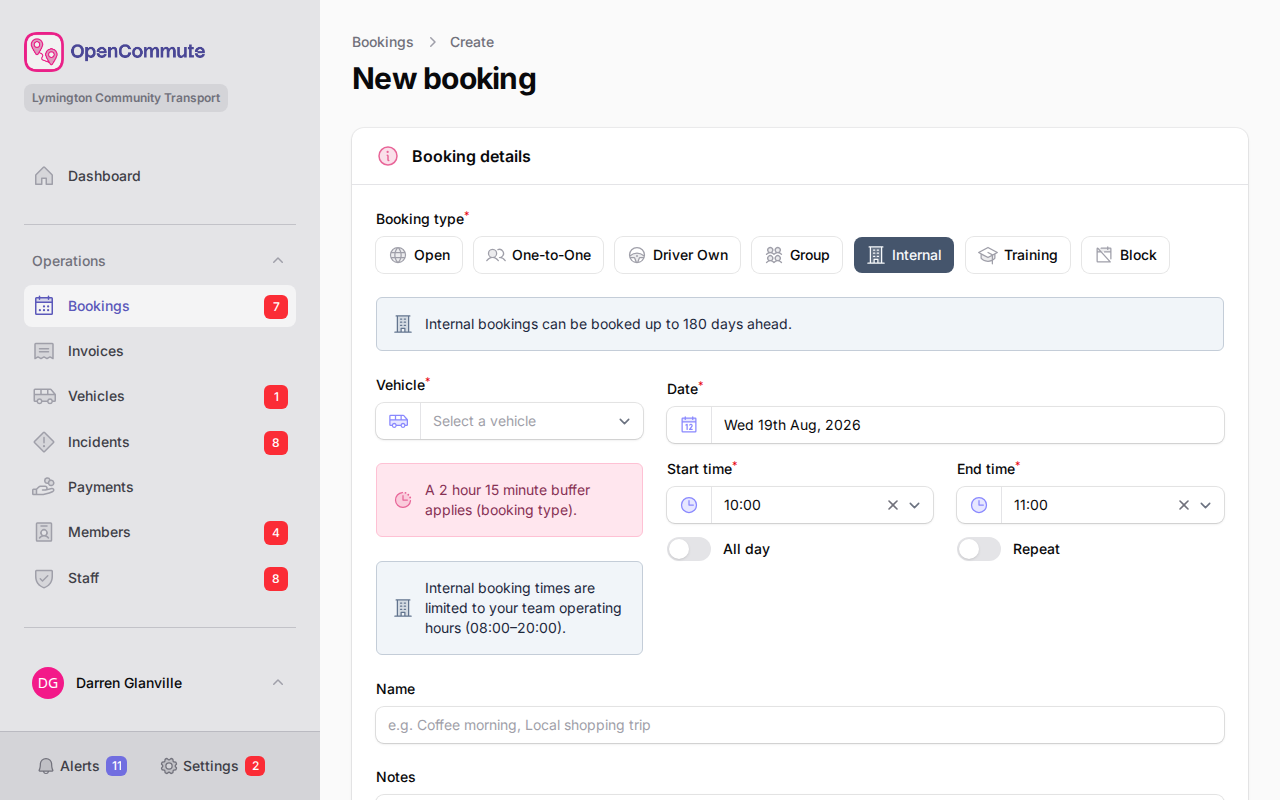 An example of creating an internal booking limited to operating hours.
Operating hours
Internal bookings must start and end on the same day within your team operating hours.
- Operating hours start and Operating hours end in Options control the earliest and latest times available in the start and end time dropdowns.
- The same hours are used by the bookings calendar display.
- All-day internal bookings are still supported when All day is turned on.
If you try to save while on the Internal details tab and a validation error applies to the main booking fields (for example, the schedule), the form switches back to Details so you can see the message.
Staff drivers
Staff drivers are managed separately from members and admin users:
- Go to Operations → Staff.
- Add or edit a staff member and tick Staff driver.
- Only active staff drivers appear when booking internal trips.
See Managing Staff for licence checks, compliance, and availability.
On the booking edit page, open the Internal details tab to choose a Staff driver. The driver field is optional.
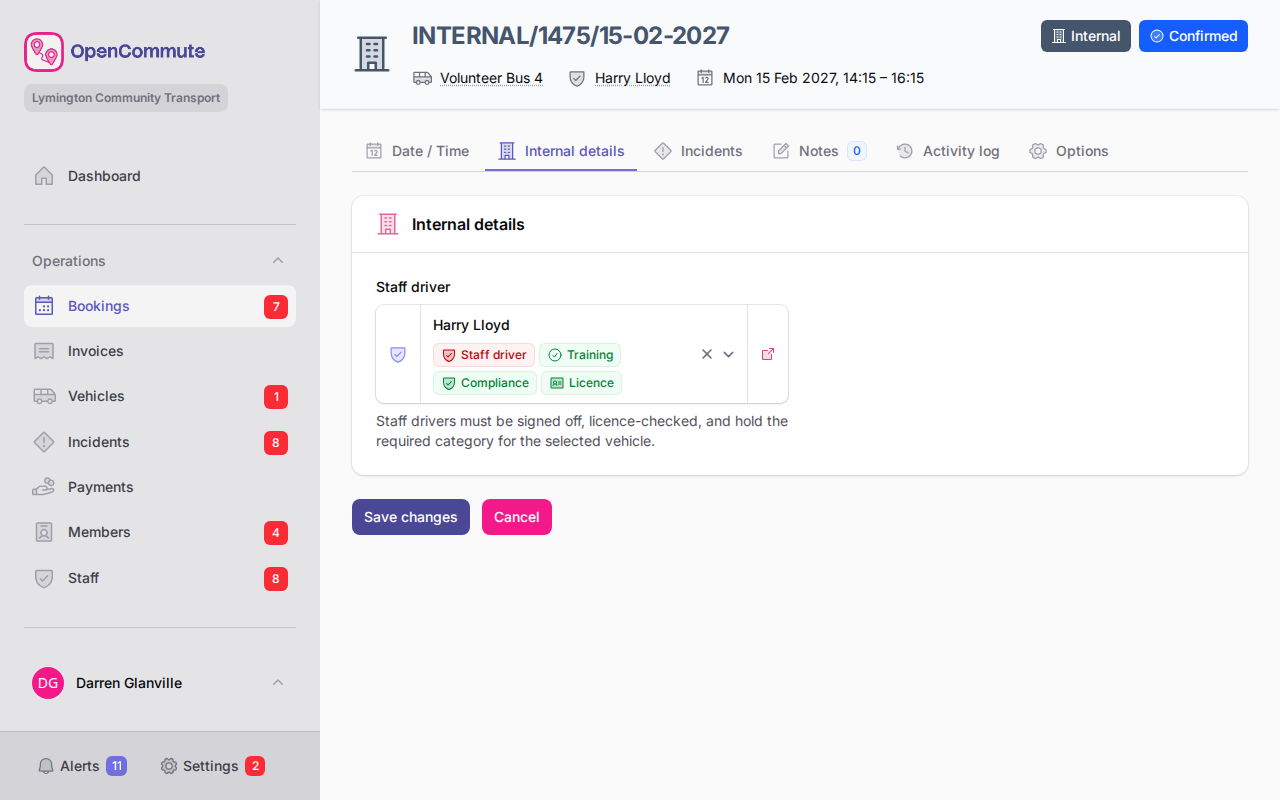 An example of assigning a staff driver on an internal booking.
Draft and confirmed status
Internal bookings are saved as Draft until a staff driver is selected.
- A new internal booking without a driver stays in Draft.
- When you assign a staff driver to a draft internal booking and save, the booking moves to Confirmed automatically.
- Until a staff driver is assigned, a warning is shown on the edit page and in the calendar tooltip.
If you save an internal booking without a staff driver, a prompt says no staff driver is assigned and asks whether to email eligible staff drivers with accept and decline links. A table lists the staff drivers who will receive the emails and when a request was already sent, so those people are not emailed again. Turn on I confirm that request emails will be sent, then choose Send request emails, or choose Save without sending. The same question appears on every save while no staff driver is selected, including after Save without sending. You can also send the emails from the missing-driver warning on the booking, or from the Options tab. Those use the same prompt: review the recipient table, confirm that emails will be sent, then choose Send request emails or Cancel.
Each send, skip, or “I am not available” reply is recorded on the booking Activity tab.
Driver overlap prevention
The same staff driver cannot be booked for overlapping internal trips. If you select a driver who is already assigned elsewhere during the chosen time, the form shows a validation error and the booking cannot be saved until you change the driver or adjust the schedule.
Vehicle overlap rules and booking buffers still apply in the usual way. See Booking Buffers and Managing Bookings.
Edit or cancel an internal booking
- Open the booking from the list or calendar.
- Use Details for the vehicle, schedule, and notes.
- Use Internal details for the staff driver.
- To cancel the booking, open the Options tab and click Cancel booking. The notice then shows who cancelled it. Other cancellation reasons are listed in Managing Bookings.
The booking type is fixed after creation and cannot be changed on the edit page.