

Appearance
Accepting an Invitation
Complete your account setup when an admin invites you to their team by email.
Before you start
An admin must have invited you from Settings > Platform Users > Invite user. You receive an email with a link to accept the invitation.
See Managing Platform Users for the admin invite flow.
Open the invitation
- Open the invitation link from your email.
- Read the message confirming which team you are joining.
If the link has expired or is invalid, you are redirected to the sign-in page. Ask your admin to resend the invite.
 An example of the accept invitation page with the team name shown.
First-time setup
If you have not used the platform before, you need to set up your account:
- Enter Your name.
- Your Your email is shown but cannot be changed — it matches the address you were invited with.
- Enter and confirm your password.
- Click Accept invitation.
You are redirected to the sign-in page. Sign in with your email and the password you just created. A 6-digit code is emailed to you — see Two-factor Authentication.
Use a strong password
Choose a password you do not use on other sites. See Changing Password for tips on keeping your account secure.
Existing account
If you already have an account with the invited email:
- Open the invitation link.
- Read the message that your email is already set up.
- Click Accept invitation.
- Sign in on the next page with your existing password.
After you accept
- Your status changes to Active on the team.
- Sign in at the app login page.
- You land on that team's dashboard.
If you belong to more than one team, use Switching Team to move between them.
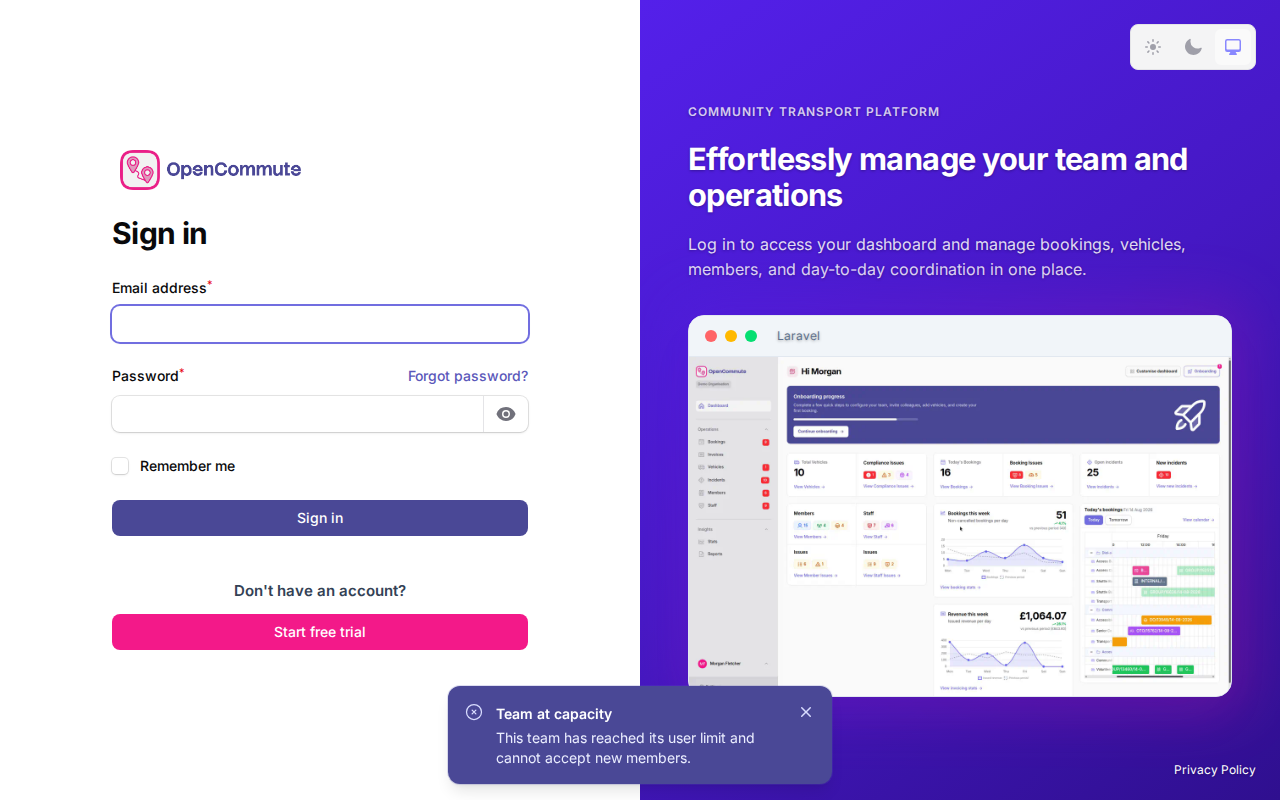
Team at capacity
A pending invite already uses a user seat, so the invitee can still accept after the team reaches its plan limit. New invites and join requests are blocked until an admin upgrades the plan or frees a seat.
Related guides
- Joining a Team — request access with a joining code instead of an email invite
- Managing Platform Users — how admins invite and manage users
- Changing Password — update your password after signing in
- Two-factor Authentication — email sign-in codes
- Switching Team — move between teams you belong to