

Appearance
Find Availability
Search for a free vehicle and time slot before you create a booking — especially useful for One-to-One and Driver Own trips with a known route.
Search for a slot
- Go to Bookings.
- Click Find availability.
- Select the Booking type.
- For One-to-One, choose the Requesting member. For Driver Own, choose the Driver member.
- Enter the route From and To addresses.
- In When needed, choose what the time means:
- Arrive by — the member must arrive by a set time
- Leave at — the journey starts at a set time
- Set Date needed and the time.
- Adjust Date flexibility and Time flexibility if the trip can move slightly.
- Optionally pick a specific Vehicle, or leave Any eligible vehicle.
- Click Search availability.
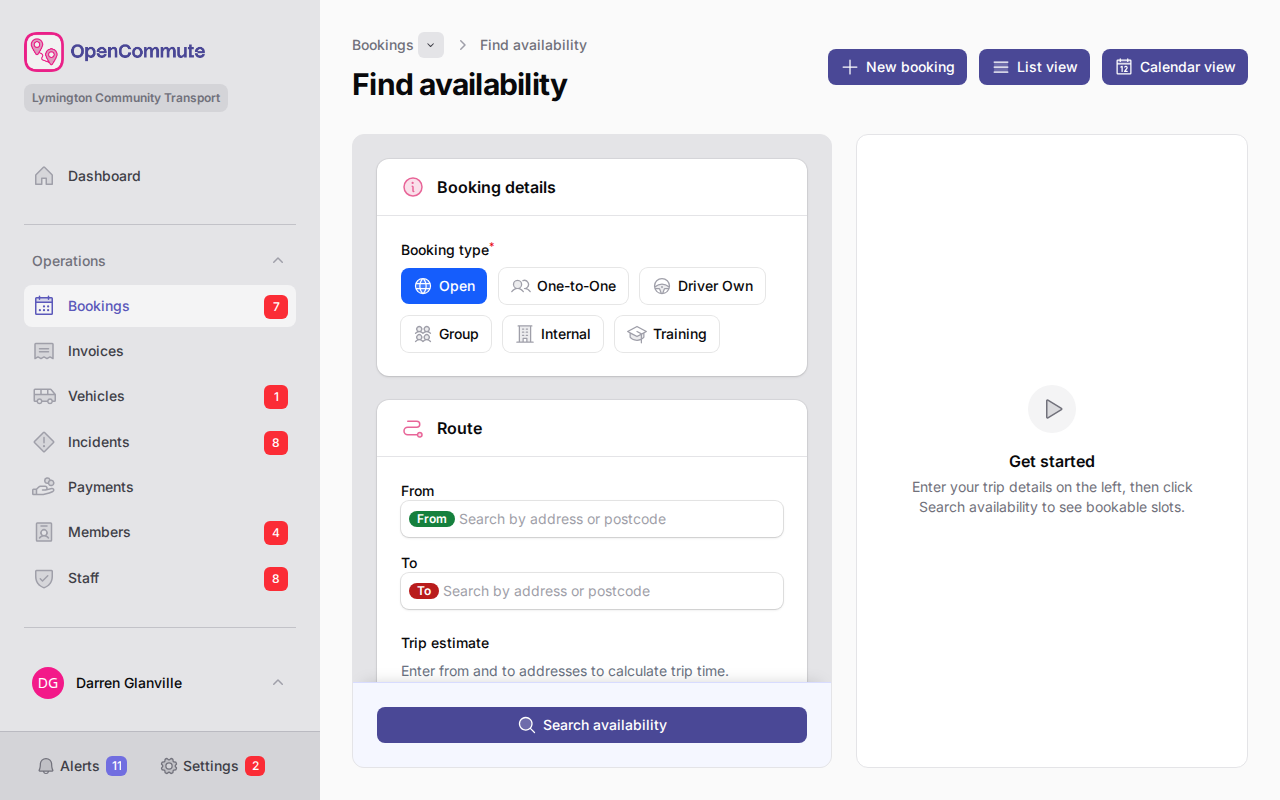 An example of searching for availability with route and time options.
Review results
After searching, a summary banner shows whether slots were found.
- Use the result filters for Date, Time, and Vehicle to narrow the list.
- Review each suggested slot with vehicle and timing details.
- Click Create booking on a slot to open the new booking form with details prefilled.
Prefilled create form
Create booking opens the standard new booking form with the vehicle, schedule, and route details already filled in — review everything before saving.
When no slots appear
If no availability is found:
- Widen Date flexibility or Time flexibility.
- Try Any eligible vehicle instead of one vehicle.
- Check that the member or driver is not already booked at that time.
- Confirm the booking type and vehicle eligibility match your search.
Related guides
- One-to-One Bookings — member trips after you find a slot
- Driver Own Bookings — driver member hire trips
- Managing Bookings — create bookings directly from list or calendar
- Booking Buffers — minimum gaps between bookings on the same vehicle
See also: dial-a-ride booking system