

Appearance
Managing Incidents
Review and resolve incidents reported against bookings or vehicles.
Report from the source record
New incidents are reported from the relevant booking or vehicle record — not from this list. Use this page to track and resolve them.
View incidents
- Go to Operations.
- Click Incidents.
- Open a tab to focus the list:
- All incidents
- Open
- New
- Resolved
When you have unacknowledged incidents, a banner at the top of the page reminds you and links to the New tab.
Use filters to narrow by status or category.
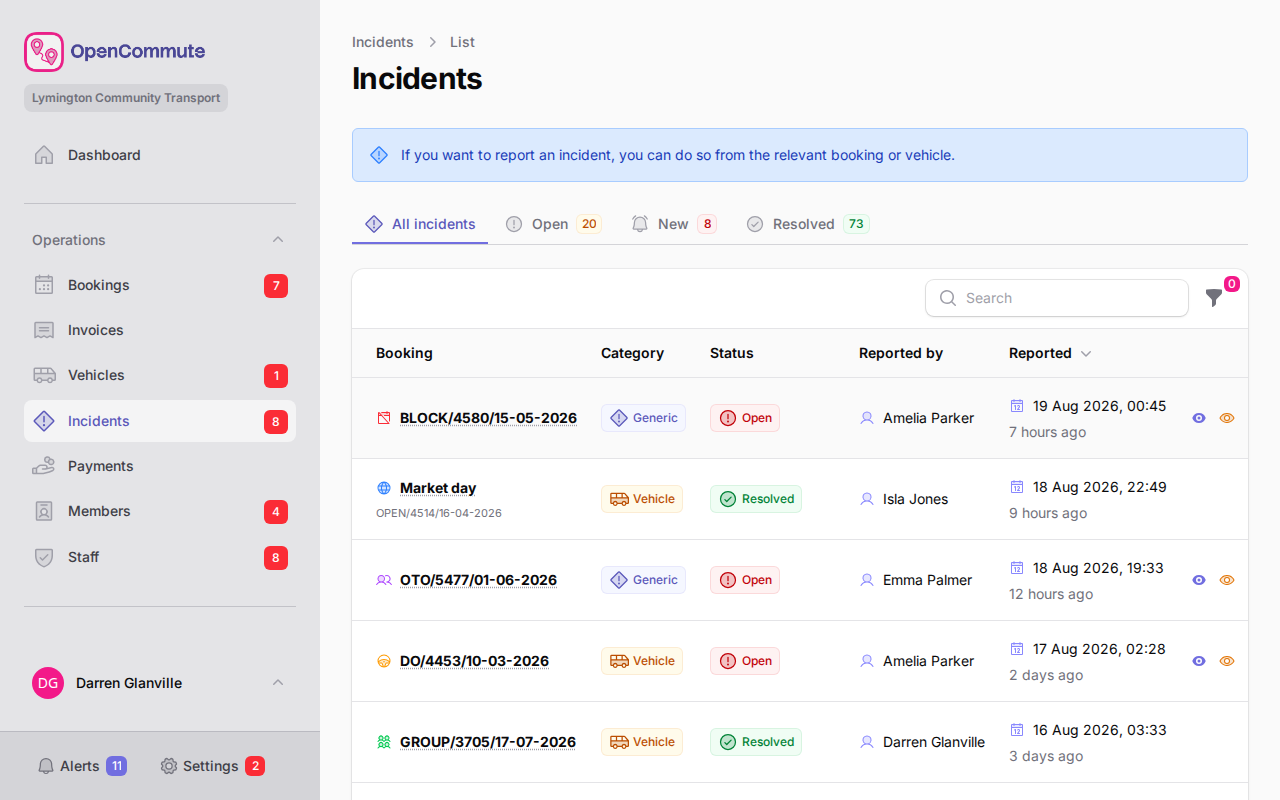 An example of the incidents list filtered to open incidents.
Open an incident
- Find the incident in the list.
- Click View on the row.
The detail view shows the full timeline of updates.
Acknowledge an incident
- Open the incident.
- Click Acknowledge.
- Confirm by clicking Acknowledge incident.
Acknowledging shows the incident is being handled without closing it.
Resolve an incident
- Open the incident.
- Click Complete.
- Confirm by clicking Resolve incident (or Complete).
Add a note
- Open the incident.
- Click Add note.
- Enter your update and save.
Notes appear on the incident timeline for your team.
Incident statuses
These are the statuses available and a small description of each one.
| Status | Description |
|---|---|
| Open | Reported and awaiting action. |
| Acknowledged | Someone is handling it but it is not yet resolved. |
| Resolved | Closed and no further action needed. |
Related guides
- Managing Bookings — report incidents from a booking
- Managing Vehicles — report incidents from a vehicle
- Reports Overview — Incidents report for printable summaries