

Appearance
Changing Billing Contact
The billing contact is the person who manages your team's subscription, billing settings, and billing notifications. Only the current billing contact can transfer this responsibility to someone else.
You will lose billing access
After you transfer billing, you will no longer be able to manage subscriptions, billing settings, or receive billing notifications for this team.
Transfer billing contact
- Go to Settings.
- Click Billing contact.
- Select the new billing contact in New billing contact. Only active Admin and Manager users can be selected.
- Choose whether to turn on Update billing email to the new contact's email address if you want the team billing email updated automatically.
- Enter your password in Your password to confirm the transfer.
- Click Transfer billing contact.
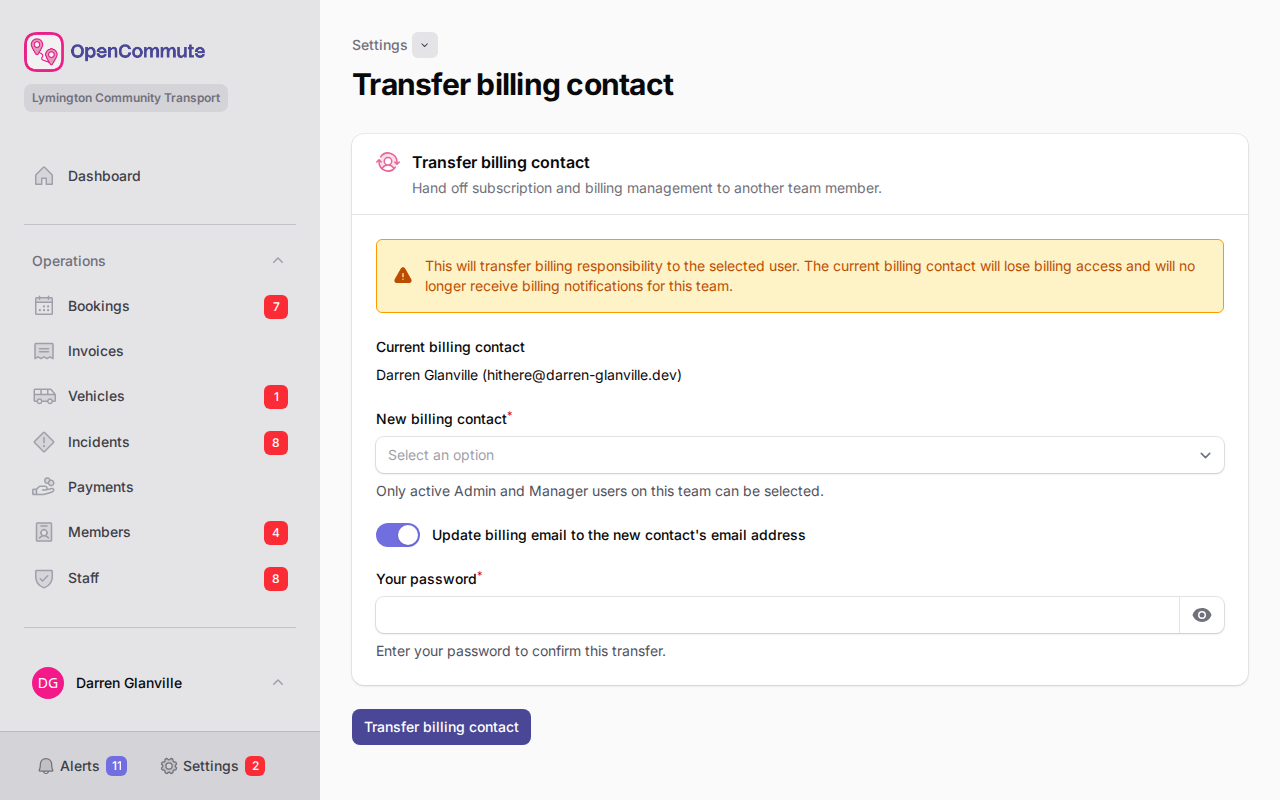 An example of transferring billing contact responsibility to another admin or manager.
The new billing contact receives an email and an in-app notification confirming that they are now responsible for billing.
You can also start this process from Settings > Team settings overview in the Billing section by clicking Transfer billing contact.
Billing badge
After the transfer, the new billing contact appears with a Billing badge on the Platform Users page.
Related guides
- Team settings overview — billing email and invoicing settings
- Support Tickets — contact support and track requests
- Managing Platform Users — platform user access and the Billing badge