

Appearance
Managing Alerts
See everything that needs your attention — subscription limits, unset membership prices, compliance, training, bookings, unsent or overdue invoices, and user approvals — in one place.
Open Alerts
- Click Alerts in the footer menu, or
- From the dashboard, click the Alerts button in the header (the badge shows how many items need attention).
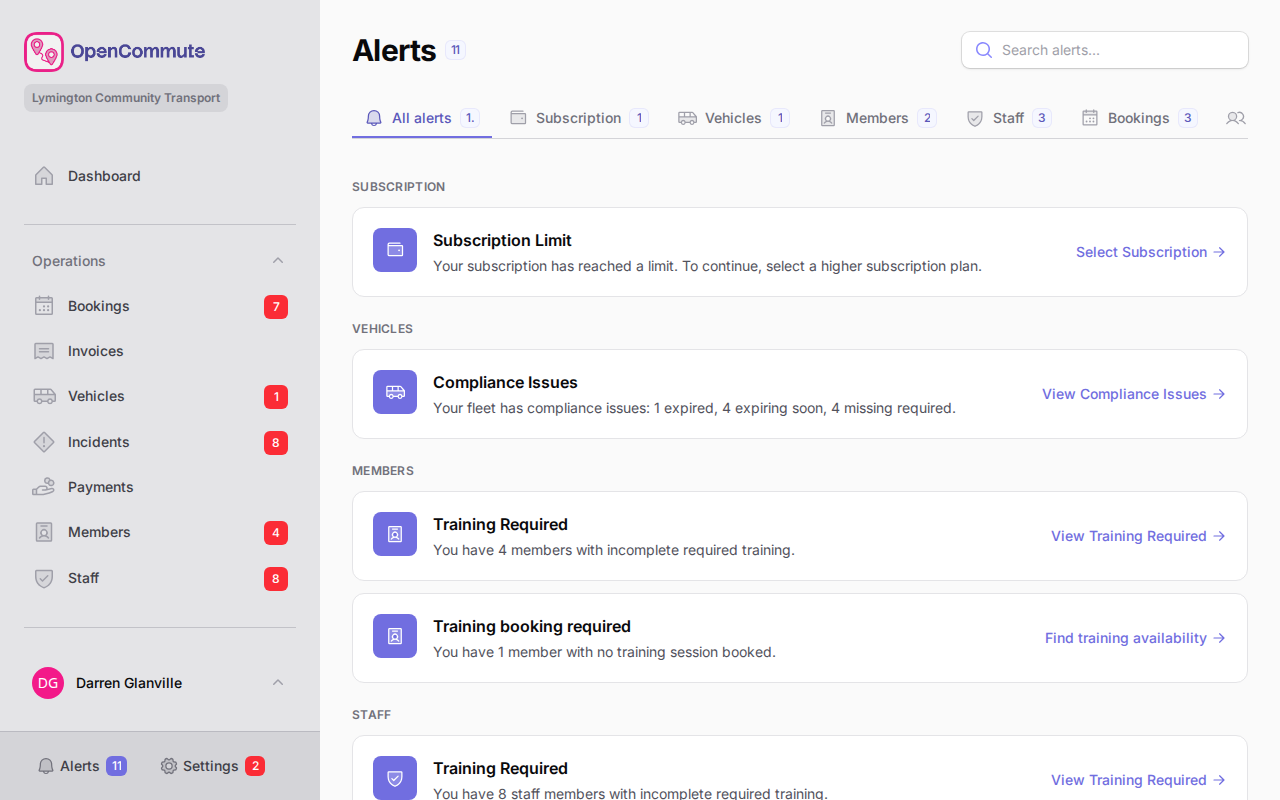 An example of the Alerts page grouped by area with links to fix each item.
Search and filter
- Use Search alerts... to find a specific alert by keyword.
- Open an area tab to focus the list:
- All alerts
- Subscription
- Vehicles
- Members
- Staff
- Bookings
- Invoices
- Settings
- Platform Users
Each tab shows a badge count when there are open items in that area.
Act on an alert
Each alert shows a short description and a link to the page where you can fix it — for example, open a vehicle compliance record or approve a waiting user.
Click the action link on the alert to go straight to the right place. Prices not set includes Set prices only if you can open Settings > Prices.
On list pages such as Members, Staff, Bookings, and Invoices, more than two alerts stack into one compact card. Hover or tab to expand them all. On a phone, swipe through the stack.
Common alert types
| Area | Examples |
|---|---|
| Subscription | Trial ending, subscription ending, limits reached |
| Vehicles | Overdue or expiring compliance |
| Members | Training incomplete, licence issues, members without a membership subscription, member app join requests |
| Staff | Training, compliance, qualifications, or licence issues. Member app join requests also appear here so you can open the same review page. |
| Bookings | Booking issues, missing mileage, needs invoicing, new incidents |
| Invoices | Invoices not sent yet, overdue invoices still unpaid |
| Settings | Membership prices not set |
| Platform Users | Users waiting approval |
Set reminder frequency
Admins can choose how often alert reminders are sent in Settings > Team settings overview > Team tab > Alert reminders.
Related guides
- Managing Members — approve OpenCommute app join requests
- Managing Platform Users — approve users waiting for access
- Managing Qualifications — staff qualification types and expiry alerts
- Mileage and Invoicing — missing mileage and invoicing alerts
- Managing Invoices — unsent and overdue invoice alerts and reminders
- Subscription Plans — subscription limit alerts