

Appearance
Dashboard and Onboarding
Your dashboard is the home page when you sign in. Use it to see today's trips, fleet summaries, and anything that needs attention.
Use the dashboard
When you sign in, the dashboard greets you by name and shows widgets your team has enabled. Overview cards and this week’s charts load after the page shell, so the home page can appear before every widget has finished. Examples:
- Today and tomorrow list shows that day’s bookings in the middle column, with the same Today and Tomorrow buttons as the bookings calendar. The list has a fixed height and a scrollbar. On today it opens scrolled so bookings that have already finished sit above the visible area. Click a booking to open it.
- Today's bookings and Tomorrow's bookings calendars
- Vehicles, Members, and Bookings overview cards. On the Bookings card, View booking issues opens the bookings list filtered to those bookings, including missing mileage and bookings that still need invoicing.
- Bookings this week and Revenue this week charts
- Incidents overview
When the OpenCommute app is enabled, the Members widget also shows an On the app count for members and for staff. Click the badge to open the matching list with that filter. Staff qualification issues appear on the same widget and open Staff & Volunteers with the Qualification issues filter on.
Click any widget link to open the full page behind it.
A one-column Tips widget sits in the dashboard grid with the other cards, so you can drag it anywhere or hide it. Each tip has an icon, a short heading, a sentence of advice, and a Read the guide link that opens the matching docs page. When you can open the related page in the app, a button for that page appears too — if you do not have access, the tip and docs link still show without that button. Tips fade to the next one every few seconds — use Previous and Next to browse manually. A different tip is shown first each day.
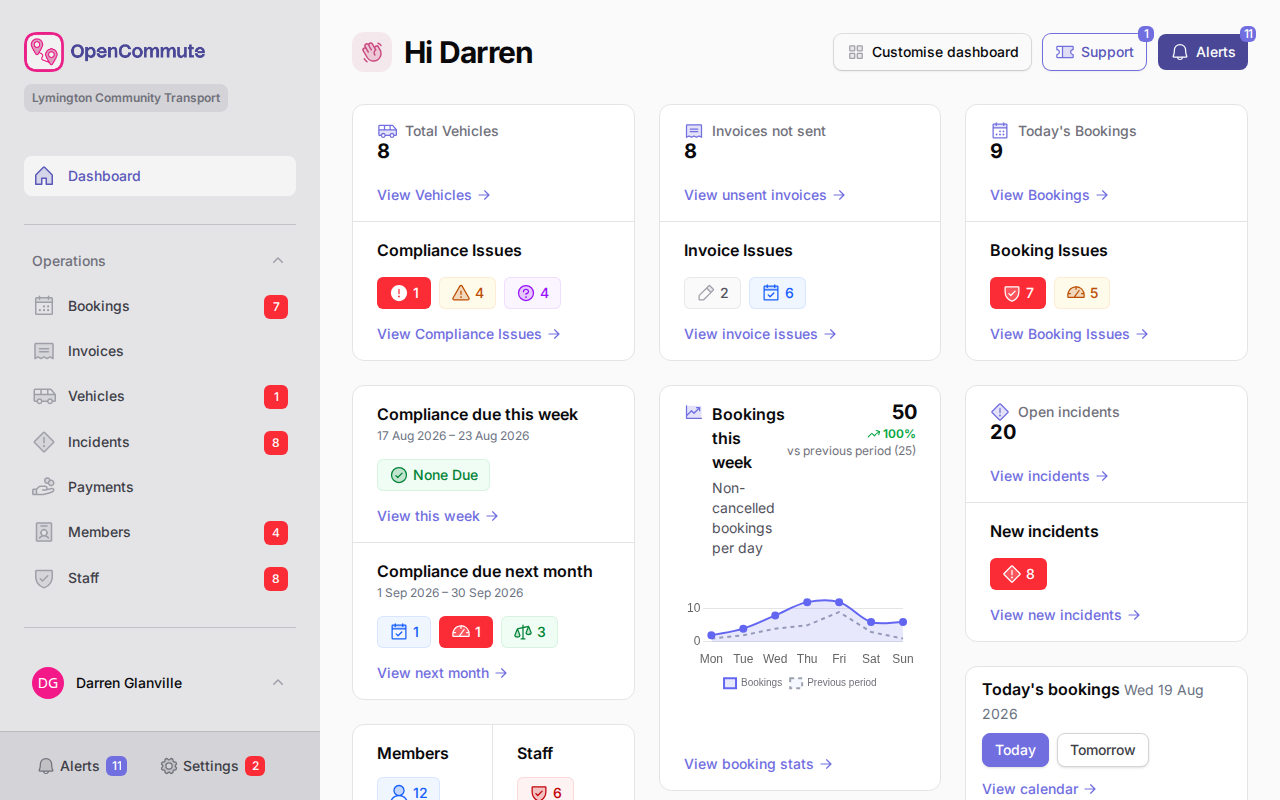 An example of the dashboard showing overview widgets and a bookings calendar.
Search your team
Use search from any page to jump to members, users, bookings, invoices, payments, staff, and organisations. Each result shows the icon for that record type — members, staff, and platform users each have their own.
- Click the search icon in the sidebar, or press ⌘K (Mac) or Ctrl+K (Windows).
- Type at least two characters.
- Use the arrow keys to highlight a result and press Enter to open it. Press Esc to close.
When the box is empty, recent searches appear. Highlight one and press Enter to search again.
The Members and Staff list search boxes also match name, email, and phone. Email is not shown as a column. Disabled people stay hidden on those lists.
Customise the layout
On desktop, you can rearrange dashboard widgets and turn any of them off:
- Open the user menu or dashboard header.
- Click Customise dashboard.
- Drag widgets into the order you prefer.
- Click the hide button on a widget to turn it off. Hidden widgets appear under Hidden widgets — click Show to put one back.
- Click Done customising.
To restore the default layout and show every widget again, click Reset layout.
Customise on desktop
Layout customisation is available on desktop. On mobile, use the standard widget order.
Start onboarding
New teams see a welcome message with Start onboarding the first time you visit the dashboard.
To return to onboarding later:
- Click Onboarding in the dashboard header (the badge shows incomplete steps).
- Work through each step — configure your team profile, subscription, compliance policy, import data (optional), users, first vehicle, and first booking.
Each step links to the page where you complete that task.
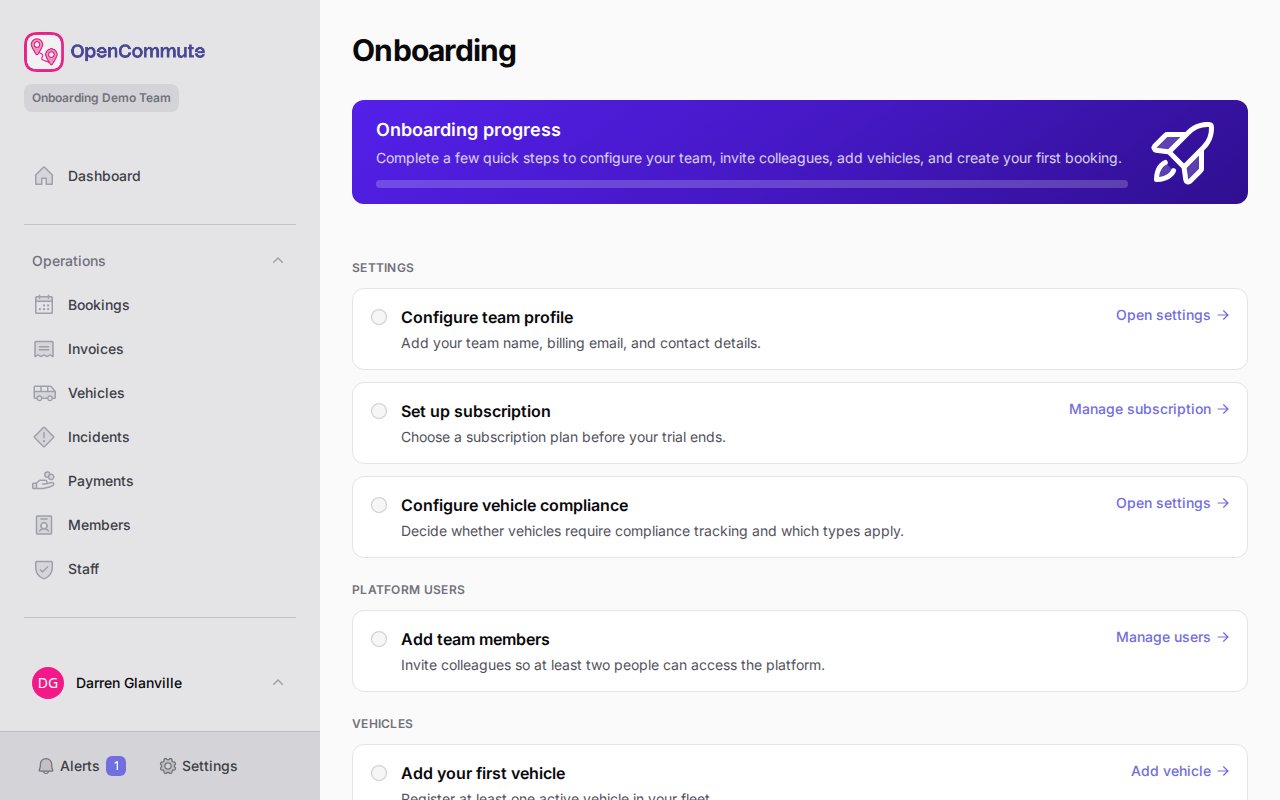 An example of the onboarding checklist showing setup progress.
Finish onboarding early
Completing onboarding helps your team get value from the platform quickly — vehicles, users, and bookings in place before you go live.
Open Alerts from the dashboard
Click Alerts in the dashboard header to jump to the alerts page. The badge shows how many items need attention.
See Managing Alerts.
Open Support from the dashboard
Click Support in the dashboard header to search the knowledge base. If you have billing access, the button opens a menu with Support (knowledge base) and Support tickets. The badge shows how many tickets are Awaiting your reply.
See Support and Support Tickets.
Show walkthrough again
To replay page tips in the app:
- Open the user menu.
- Click Show walkthrough.
Related guides
- Managing Alerts — resolve items flagged on the dashboard
- Subscription Plans — complete the subscription onboarding step
- Managing Vehicles — add your first vehicle
- Importing Data — bulk import members, vehicles, and bookings
- Managing Bookings — create your first booking