

Appearance
Managing Invoices
Create, send, and manage invoices for completed bookings, member and organisation subscriptions, and manual charges.
View invoices
- Go to Operations.
- Click Invoices.
- Review the list of invoices with status, bill-to details, and totals.
- Use filters to narrow by status or type (Bookings, Subscription, Manual).
Click a row to open the invoice, or use View from the row actions.
A red badge on Invoices in the sidebar shows how many invoices are overdue — the same overdue count as the Dashboard invoice issues badge. When any invoices are overdue, an Overdue invoices alert also appears at the top of this list and on Alerts. Click View overdue invoices to filter the list to those invoices.
When draft or issued invoices have not been sent yet, an Invoices not sent alert appears in the same places. Click View unsent invoices to filter the list to those invoices — the same filter as View unsent invoices on the Dashboard.
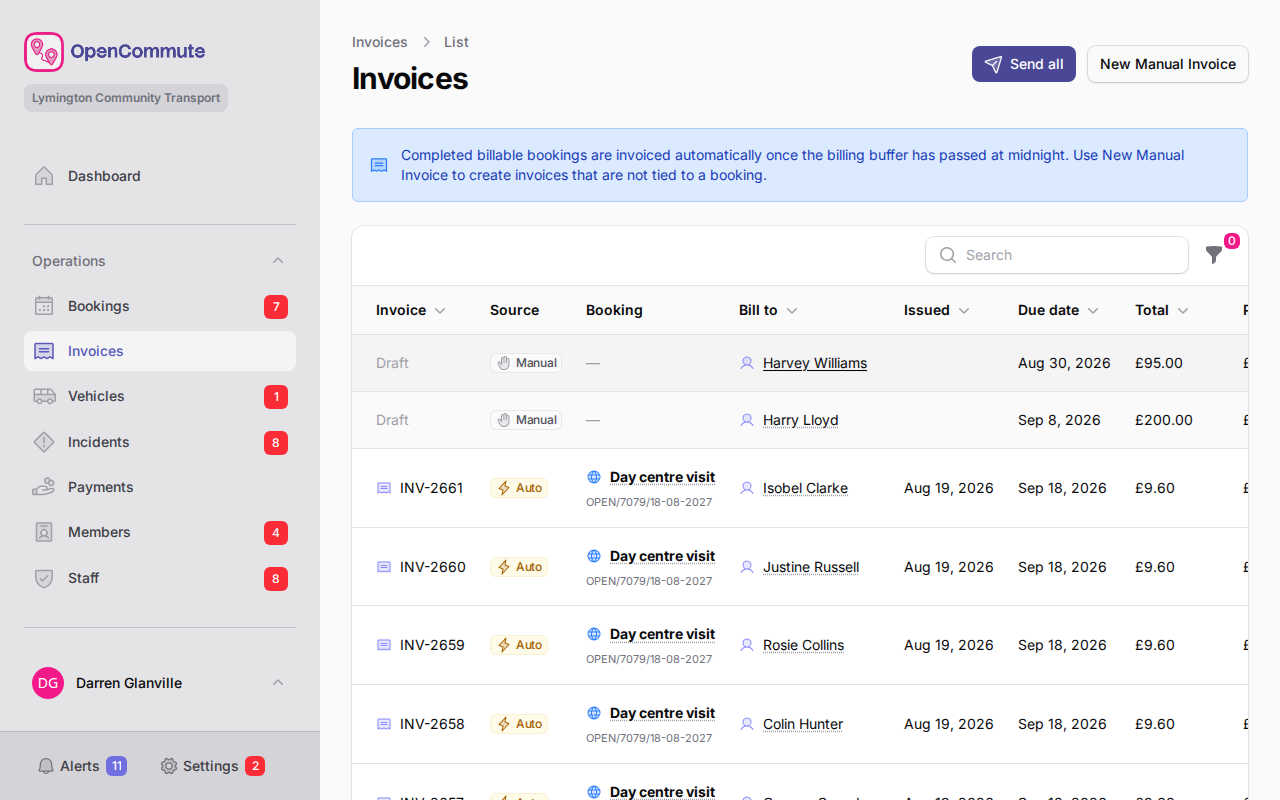 An example of the invoices list showing draft and sent invoices.
Create a manual invoice
Use a manual invoice when you need to bill someone outside a booking.
- Go to Operations.
- Click Invoices.
- Click New Manual Invoice.
- Select the Member to bill — Name and Email fill in automatically.
- Set Due date and add any notes.
- In Line items, enter Description, Qty, and Unit price for each line.
- Click Add line item for extra rows.
- Click Preview to check the layout, then save.
Manual invoices are standalone
A manual invoice is not linked to a booking. Booking invoices are created from the booking itself — see Mileage and Invoicing. Subscription invoices are generated from the Subscription tab on a member or organisation and appear in this list with type Subscription.
Subscription invoices
Starting a member or organisation subscription creates an invoice for the current calendar month or year at the full period price set in Settings > Prices. Teams offer either monthly or yearly membership, not both. The Start subscription window shows that interval and amount. If a rise is scheduled, the invoice uses the rate in force on the period start date. Renewal invoices are generated automatically before the next period. The subscription is only active for bookings after the invoice is Paid.
Settings > Members & Staff > Subscriptions includes Renewal reminders. Choose how long before the current period ends to email members and organisations with a Renew and invoice early link. They confirm on a short web page, which creates and sends the next period’s invoice so they can pay straight away. Off disables these emails. This is separate from Payment due reminders under invoicing.
See Managing Members — Subscriptions and Managing Organisations — Subscriptions.
Send a draft invoice
- Open the draft invoice.
- Review the document preview.
- Click Send Now if the bill-to has an email address, or Mark as sent if they do not.
The unsent invoice notice says when booking and subscription invoices will be emailed automatically if you wait, and when the billed member is on the OpenCommute app it also says they will get an app notification. Manual invoices are only sent when you use Send Now or Mark as sent. Send Now and Send all show a table with the bill-to name and the email addresses that will receive the invoice. Send Now says the invoice will be emailed to the member, organisation, or attendee listed below. For a manual invoice, Send Now also says it will be sent by email now, with the email icon, and when the billed member is on the OpenCommute app it says they will also get an app notification. If the billed member or organisation already has a Direct Debit mandate, a grey GoCardless alert on the invoice explains that collection happens when you send the invoice, and Send Now says it will be sent to GoCardless for collection.
The member can then view the invoice using the public link. Invoices without an email address are not sent automatically. Manual invoices without an email are never sent automatically either — print and mark as sent when ready.
Resend an invoice
If an unpaid invoice was already sent but the bill-to did not receive the email, you can send it again.
- Open the invoice.
- Open the Options tab.
- Click Resend invoice.
- Confirm to email the invoice to the bill-to address again.
When the billed member uses the OpenCommute app, they also receive another app notification. Resending does not change the invoice status or start another Direct Debit collection.
View the public invoice
- Open a sent invoice.
- Click View invoice.
- The public invoice opens in a new tab. Share that address if you need to send the member a link.
Pay an invoice online
When Stripe or GoCardless is connected and enabled in Payment connections, unpaid invoices show Pay invoice in the page header and on the document.
The public invoice and OpenCommute app also show How to pay (or Other ways to pay when Stripe or GoCardless is enabled): methods and notes from Invoicing. Stripe and GoCardless are not listed there — they appear as pay buttons when those connections are enabled. Organisation phone, email, and website stay at the bottom of the invoice.
On the invoice in Operations > Invoices, use Pay invoice in the header or on the document to take a card or bank payment (for example while you are on the phone with the member). If both Stripe and GoCardless are enabled, the header and document show separate Pay with Stripe and Setup Direct Debit options. After the billed member or organisation has set up Direct Debit, later invoices show Pay by Direct Debit instead of Setup — including invoices billed to an organisation when the billed member already has a mandate. The public invoice link shows those same options so the member can pay themselves. On a phone, those header buttons are hidden — use the pay cards on the document.
The first Direct Debit payment sets up a mandate for the billed member or organisation. Later sent invoices can be collected with Pay by Direct Debit. The confirmation is titled Pay by Direct Debit and explains that it uses the existing Direct Debit. In Operations it says the billed person will receive an email from GoCardless. Confirm with Send Direct Debit — that submits the collection rather than opening GoCardless setup. Sending the invoice also starts collection automatically. The invoice status changes to Collecting while GoCardless is collecting the payment. A grey notice with the GoCardless icon shows when the payment was submitted and when it is expected to leave the account, and Pay invoice, Record payment, Void invoice, and other payment methods are locked. If the collection fails, or if GoCardless cannot start it when the invoice is sent, the status returns to Sent (or Overdue if the due date has passed), and card payments, Direct Debit, and Record payment are offered again. The invoice shows a warning, History records Direct Debit failed, and billing users get an in-app notification.
If the invoice has been issued but not sent yet, Pay invoice and Record payment still appear but are disabled until you send or mark the invoice as sent. Member account credit is applied as soon as a booking invoice is issued, so the sent invoice already shows the reduced balance.
After a card payment, pay buttons lock while Stripe confirms it. The page checks every few seconds and shows a notification when the payment is recorded.
If someone records a cash or credit payment while an online checkout is still open, Stripe refunds the card charge automatically and logs that on the invoice History tab. GoCardless cannot be refunded from OpenCommute in that case — reverse it in the GoCardless dashboard when History shows the payment could not be applied.
Before checkout, a confirmation shows the provider logo, the amount to pay, and where they will be sent. Stripe explains they will be redirected to pay securely. Direct Debit explains they will be redirected to GoCardless to pay this invoice and set up Direct Debit for future invoices. From Operations, that confirmation also asks you to check the payment is for the person on the invoice.
On the public invoice, Pay invoice opens the same confirmation. Printed copies hide that bar and keep the public link in the footer.
The invoice email uses Pay invoice when online payments are available. That button opens the public invoice page.
Payment confirmation email
When a payment is recorded — online or entered by staff — the bill-to recipient, member, and organisation finance contacts receive a payment received email. It shows the amount, method, and whether a balance remains.
Payments also appear on the invoice History tab, including Stripe payments recorded by OpenCommute. History also lists emailed and OpenCommute app notification deliveries (for example when an invoice is sent or a payment is recorded for a member on the app). When a Direct Debit is submitted to GoCardless, History shows Direct Debit submitted with the amount and the date it is expected to leave the account. When GoCardless confirms it, History then shows Payment recorded.
View payments
- Go to Operations.
- Click Payments.
- Review amounts, methods, invoices, and who recorded each payment.
- Filter by Method (shown as the same badges as on the list), a Paid date range, or Voided payments (Active only, Include voided, or Voided only). The member Payments tab uses the same filters.
Direct Debit collections already submitted to GoCardless appear as Pending on Operations > Payments and the invoice Payments tab, with the date the payment is expected to leave the account. They stay Pending until GoCardless confirms them. The invoice Payments tab shows the same pending row for that invoice.
Card payments recorded by staff use a pink badge so they stay distinct from Stripe. Bank transfer uses a blue badge.
Void a payment
- Open the invoice Payments tab, or go to Operations > Payments.
- Click Void payment on the payment.
- Enter a reason.
- Confirm and click Void payment.
Voiding updates the invoice balance and may affect booking confirmation status.
Stripe payments are refunded
Voiding a Stripe payment refunds the full amount through Stripe immediately. The confirmation shows how much will be refunded. If Stripe cannot refund it, the payment stays on the invoice so you can try again or refund it in Stripe first.
Cash, card, cheque, bank transfer, and GoCardless payments are voided in OpenCommute only. Account credit payments cannot be voided.
A Stripe dispute, a full Stripe refund in the Stripe Dashboard, or a GoCardless chargeback also voids the collected payment and reopens the invoice. A partial Stripe refund does not void the local payment. OpenCommute does not send a refund to Stripe for a dispute — the provider has already taken the money. Billing users are notified. If the dispute is later won, record a new payment.
Send a payment due reminder
When an invoice is approaching its due date and still unpaid, OpenCommute can email the bill-to address automatically.
- Open Settings > Invoicing.
- Set Payment due reminders — Off, 1 day, 2 days, or 1 week before the due date (default 1 day).
- Click Preview email to see a sample reminder.
- Click Save settings.
Reminders are sent once per invoice while it is still before the due date. After the due date passes, overdue reminders apply instead.
Send an overdue reminder
When an invoice is past its due date and still unpaid, opening it shows an overdue alert with the due date and how long ago it became overdue. If a reminder has already been sent, the alert shows when it was sent so you do not send another.
- Open the overdue invoice.
- In the overdue alert, click Send reminder.
- Confirm to email a payment reminder to the bill-to address.
Automatic reminders can also be sent on a schedule. Set Overdue invoice chases in Settings > Team settings overview > Invoicing.
Send reminder on the overdue alert is only available when the invoice has a bill-to email address and a reminder has not already been sent. To send another reminder, open the Options tab and click Resend reminder.
Print an invoice
- Open the invoice.
- Click Print.
- If the invoice has not been sent yet, confirm Mark as sent after printing — or click Not yet to leave it unsent.
Void an invoice
- Open the invoice.
- Open the Options tab.
- Click Void invoice.
- Choose What should happen next? if options appear — for example Void and unblock booking or Void and cancel booking.
- Enter a Reason visible to the member. If you choose Void and cancel booking, that reason is also stored on the booking Activity log.
- Confirm and click Void invoice.
You cannot void an invoice while its status is Collecting (a Direct Debit is already with GoCardless). Wait until the collection confirms (Paid) or fails (back to Sent or Overdue), then void if you still need to.
Voiding cannot be undone
Voided invoices stay on record for audit purposes but are no longer payable.
If you remove a member from an open booking before the invoice period starts, their unpaid invoice is voided automatically. If they have already paid, the invoice is voided and the payment becomes account credit on the member. Credit applied to a later invoice shows as an Account credit payment.
Cancelling a member subscription voids an unpaid current-period invoice. It also voids unpaid renewal invoices for periods that have not started yet. Partial payments on those future invoices become account credit; fully paid future periods keep coverage. You cannot cancel while a Direct Debit collection is in progress — wait for it to confirm or fail first.
The original payment stays on the voided invoice for audit. It is marked Moved to credit and cannot be voided, so later invoices already paid from that credit are left unchanged. Account credit payments also cannot be voided.
See Open Bookings — Remove a member.
Invoice statuses
These are the statuses available and a small description of each one.
| Status | Description |
|---|---|
| Draft | Created but not yet sent to the member. |
| Issued | Finalised with a due date but not yet emailed to the member. |
| Sending | Being emailed or sent to GoCardless for collection. |
| Sent | Sent to the member and awaiting payment. |
| Collecting | A Direct Debit has been sent to GoCardless and is waiting to confirm. Opening an invoice that is already being collected updates it to this status. |
| Partially Paid | Some payment received. |
| Paid | Fully paid. |
| Overdue | Past the due date and not fully paid. |
| Voided | Cancelled and no longer payable. |
Related guides
- Mileage and Invoicing — invoice from a completed booking
- Payment Connections — connect Stripe and GoCardless for online invoice payments
- Team settings overview — invoicing defaults and tax settings
- Managing Members — account credit from cancelled open booking places
- Managing Organisations — organisation billing for group bookings