

Appearance
Joining a Team
Request access to a team using a joining code your admin has shared with you.
Admin approval required
After you send a joining request on the website, an admin must approve you before you can sign in to the team. Members and staff who enter or scan the code in the OpenCommute app usually join without extra approval. If the organisation has an operational area and their home address is outside it, the app shows a pending message until an admin approves the request.
Before you start
Your team admin must have:
- Turned on Allow external joining? in Settings > Joining.
- Shared the 8-digit joining code, QR, or website join link with you.
Admins can find these from the QR icon next to search in the sidebar (or Ctrl+Q), Settings > Joining, or Settings > Platform Users > Show Joining Code. See Joining settings and Managing Platform Users for the admin side.
Join in the OpenCommute app
Members and staff can join from the OpenCommute app:
- Enter the 8-digit joining code, or scan the QR your admin shared.
- On the confirmation screen, choose whether you are a Driver or Non-Driver member if asked, then click Continue.
- On the consent screen, turn on Marketing signup and Photo consent if you agree — these apply only to this organisation — then click Continue.
- Read the info alerts if they are shown: you need a paid subscription before you can book, with the monthly or yearly price when one is set, and a training session if this organisation requires one before you can drive — you will be contacted to arrange that booking. After you join, Home warns when a subscription is still needed, and Settings → Membership is where you start, pay, cancel, or resume it. The same training message stays on the app home until a training session is booked.
- Click Join. Use Back to return to the previous screen. The QR encodes the code itself — scanning it in the app does not open this website page.
- If your home address is outside the organisation’s operational area, the app stays on a pending screen until an admin approves you. You cannot use that organisation until then. If you already belong to another organisation, you can go back to it.
You receive an email when you join, or when a join request is sent. When a request is approved or not approved, you receive another email. If you allowed notifications on the device, the OpenCommute app also shows a notification after the request is reviewed.
Join with a code on the website
- Open the join link your admin shared, or go to the join page on the sign-in screen.
- If the link does not include a code, enter the 8-digit joining code.
- Enter Your email.
- Review the team name shown in the preview message.
- Complete the security check if one is shown, then click Send joining request.
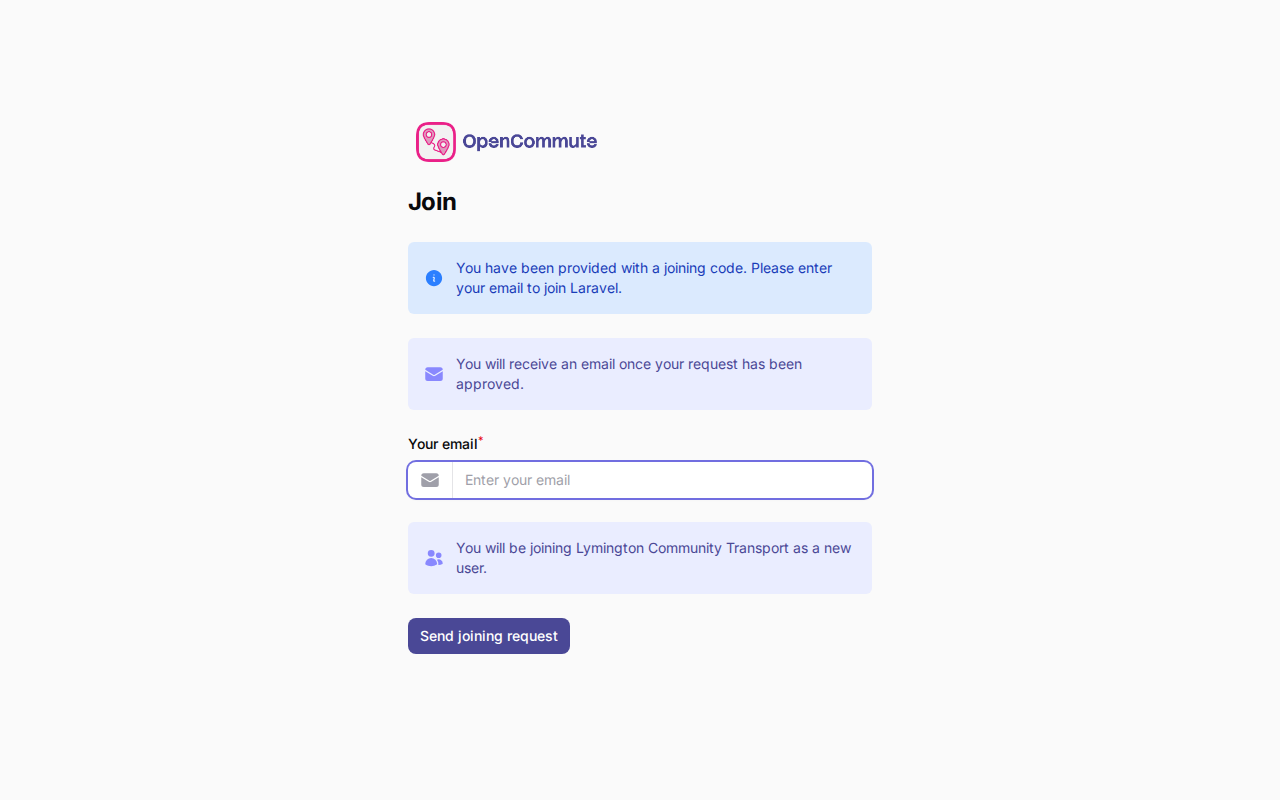 An example of the public join page with a joining code and email address.
After you submit
- You see a confirmation that your request was received.
- You are redirected to the sign-in page.
- You receive an email when your request has been submitted.
- Wait for an admin to approve your request — you will receive another email when you can sign in.
Check your spam folder
If you do not receive emails about your join request, check your junk or spam folder.
Sign in after approval
Once an admin approves your request:
- Go to the sign-in page.
- Enter the email address you used on the join form.
- Sign in with your password.
If this is your first time and you have not set a password yet, use Forgot password? on the sign-in page to create one. See Changing Password. After you sign in, a 6-digit code is emailed to you — see Two-factor Authentication.
If something goes wrong
| Message | What it means |
|---|---|
| Invalid joining code | The code is wrong or external joining is turned off for that team. Ask your admin for a fresh code. |
| Already in team | That email is already linked to the team. Try signing in instead. |
| Waiting Approval | Your request is pending — an admin still needs to approve you. |
Related guides
- Accepting an Invitation — when an admin invites you directly by email
- Joining settings — admin guide for the joining code and QR
- Managing Platform Users — admin guide for join codes and approvals
- Changing Password — reset or change your password
- Two-factor Authentication — email sign-in codes