

Appearance
Subscription Plans
View your current plan, compare limits, and change or manage your team's subscription.
Billing access required
Only users with billing access (usually the billing contact) can manage subscriptions.
View current plan
- Go to Settings.
- Click Manage subscription (or Select subscription if you have not subscribed yet).
- Review Current status — plan name, status, and next billing date.
- Check usage against your limits for users, members, vehicles, and storage.
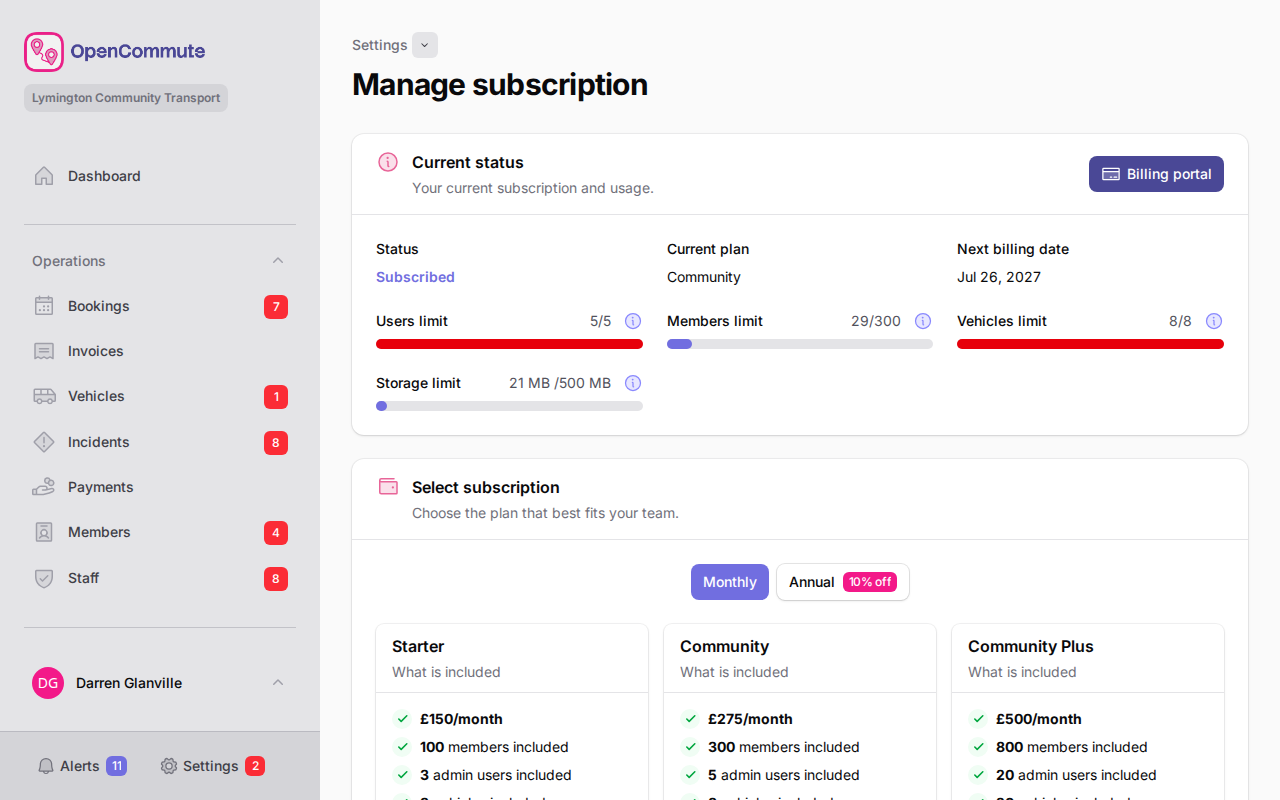 An example of the subscription page showing plan status and usage limits.
You can also see plan summary and limits on the Team tab in Team settings overview.
Change plan
- Go to Settings.
- Click Manage subscription.
- Compare the available plans.
- Click Change plan (or Select plan) on the plan you want.
- Confirm in the dialog and complete payment if prompted.
Toggle between monthly and annual billing where available.
Open the billing portal
- Go to Settings.
- Click Manage subscription.
- Click Billing portal.
The Stripe billing portal opens in a new tab for payment methods, invoices, and cancellation.
Restart a subscription
If your subscription has ended, use Restart subscription on the plans page to subscribe again.
User limits
If you reach your plan's user limit, you cannot invite more platform users until you upgrade. Active users and pending invites count toward the limit; Super-Admins do not. See Managing Platform Users.
Related guides
- Changing Billing Contact — transfer billing responsibility
- Support Tickets — contact support and track requests
- Team settings overview — team billing section and alert reminders
- Managing Platform Users — subscription user limits