

Appearance
Audit Log
Review a team-wide history of changes — who changed what, and when.
Admin or Manager access
Users with Admin or Manager roles can view the audit log. Other roles may not see this page.
View the audit log
- Go to Settings.
- Click Audit log.
- Review entries sorted by most recent first.
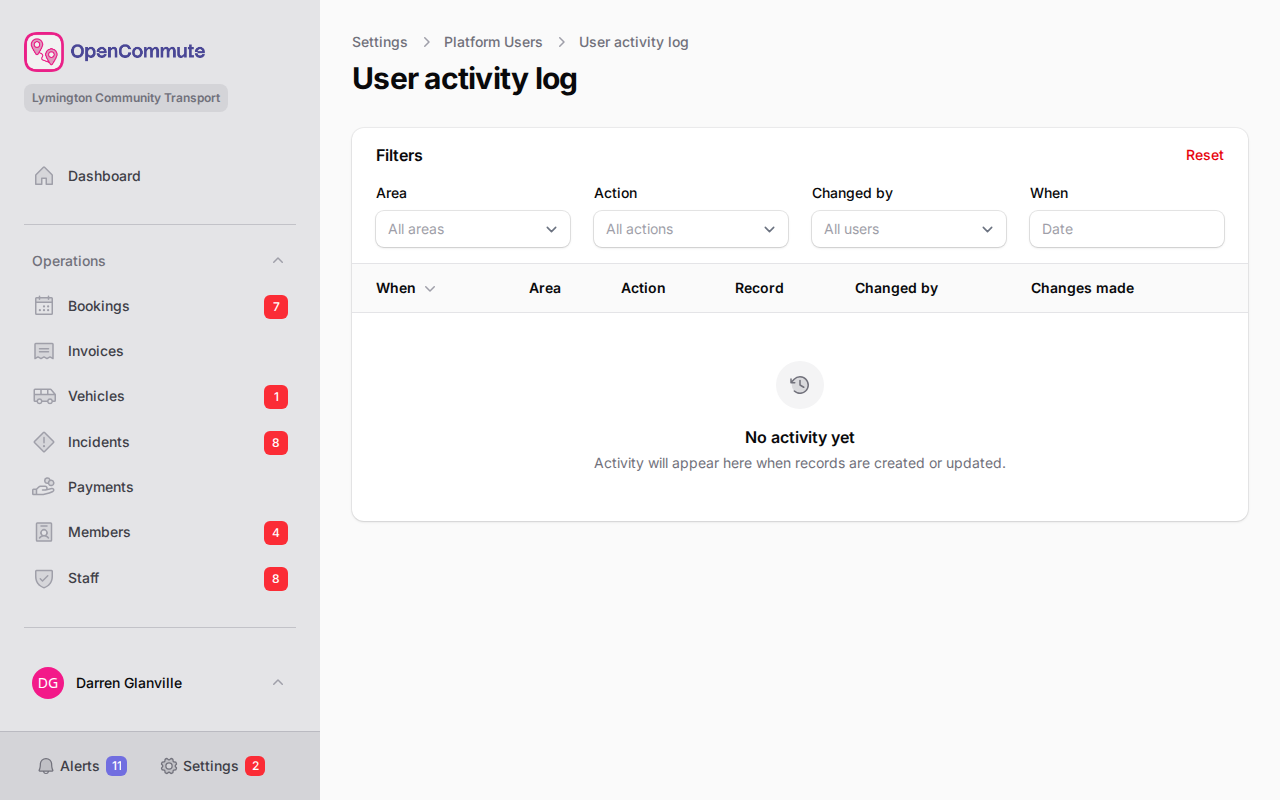 An example of the audit log showing recent team changes.
Filter entries
- Open Filters above the table.
- Narrow by Area, Action, Changed by, or When.
- Apply the filter to focus on the records you need.
Understand an entry
Each row shows:
- When — date and time of the change
- Area — which part of the system changed (for example, Bookings or Vehicles)
- Action — what happened (created, updated, deleted, or logged in)
- Record — which item was affected
- Changed by — which user made the change. Changes from the OpenCommute app also show a mobile icon. Disconnecting someone from the app on Options is attributed to the platform user who did it, not as a change from the app.
- Changes made — summary of fields that changed, including the IP address for Logged in entries. Member type changes show each type as a coloured badge, using the same labels as the member form (for example Non-Driver member or Staff driver).
Emergency contact access also appears in the audit log when a platform user views or updates a member's emergency contact on the platform. These entries include the reason for access entered in the secure access modal. Viewing or updating a National Insurance number on Driving licence is logged the same way, with the reason, and never stores the number itself. When someone updates their emergency contact from the OpenCommute app, the log shows Emergency contact updated from app without the contact details. When they update their phone or home address in the app, the log shows Phone and address updated from app without the phone or address — open the member or staff record to see those details. Older activity entries that stored phone, address, or emergency contact values also hide those values in Changes made. When they change marketing signup or photo consent in the app, the log shows Consent updated from app. App changes use the member or staff icon for Changed by, plus a mobile icon.
Subscription requirement overrides appear as Subscription overridden with the reason and expire date, rather than the raw override fields. Revoking an override appears as Subscription override revoked. When an override reaches its expire date, it appears as Subscription override expired with the end date.
You can also review emergency contact access on an individual member or staff record under the Activity log tab.
Use with booking activity
Individual bookings and vehicles also have their own Activity log tabs for record-level history. The audit log covers changes across the whole team.
Related guides
- Roles and Permissions — who can access the audit log
- Managing Vehicles — vehicle activity log
- Managing Bookings — booking activity log tab
- Managing Platform Users — user activity log, including sign-ins and IP addresses