

Appearance
Managing Organisations
Organisations represent groups — clubs, schools, or other bodies — that book vehicles for group trips and receive invoices.
Admin access required
Only users with an Admin role can manage organisations in Settings.
View organisations
- Go to Settings.
- Click Organisations.
- Review the list of organisations linked to your team.
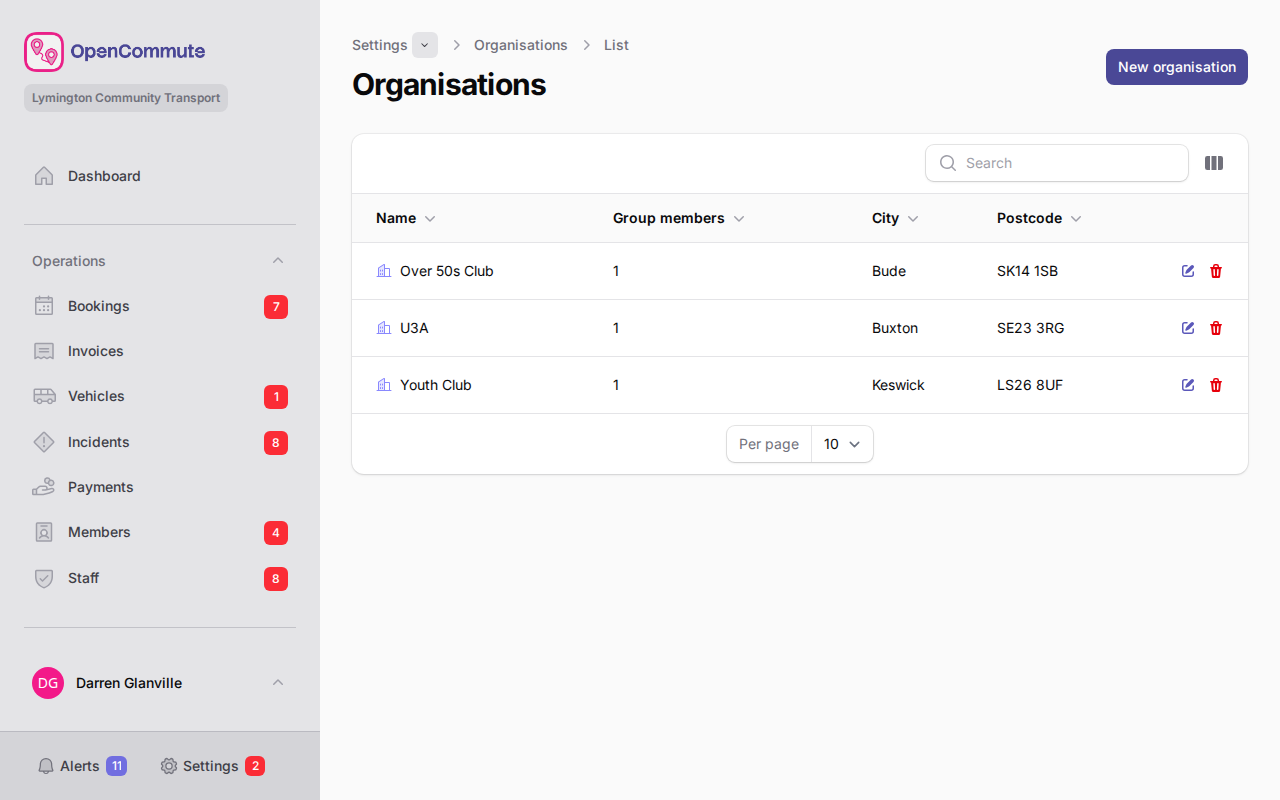 An example of the organisations list in Settings.
Add an organisation
- Go to Settings.
- Click Organisations.
- Click Create.
- Enter the organisation Name, Contact name, and Phone.
- Use Search address or enter the main address manually.
- Leave Use a separate invoice address off to invoice the main address. Turn it on to enter a different invoice address. The invoice fields start as a copy of the main address, which you can then change.
- Add Invoice emails for billing correspondence.
- Optionally enter an Emergency contact name, phone, and relationship (for example chair, secretary, or caretaker).
- In Group members, link members who belong to this organisation.
- Click Create.
You can also create an organisation while you are adding or editing a Group member (Organisation field) or a Group booking (Organisation in Group details). Search for the name; if it is not listed, use Create organisation, enter the same details in the window, and save. The new organisation is selected on the member or booking form. You need permission to create organisations in Settings.
Edit an organisation
- Open the organisation from the list.
- Update the contact name, phone, main address, invoice address, emergency contact, or invoice emails.
- Add or remove linked Group members.
- Click Save.
Subscriptions
Group bookings require the organisation to have a paid subscription for the trip date. If that subscription later lapses, the booking warns that the organisation is not subscribed. When Draft auto-cancel is on, the booking is cancelled in that window and the notice says The organisation is not subscribed.
- Open the organisation.
- Go to the Subscription tab.
- Click Start subscription. The window shows whether this is a monthly or yearly subscription and the invoice amount. The interval is set in Settings > Prices or Settings > Members & Staff.
- If organisation prices are still £0.00, the Start subscription window warns that prices have not been set and the invoice will be £0.00. Users who can open Settings > Prices see a Set prices link.
- Confirm that an invoice will be generated for the amount shown, covering the current period until the end date shown, then click Start subscription. The invoice is created at the organisation price. Group bookings are allowed once that invoice is Paid.
Cancel to stop future invoices. During the paid period an alert shows the end date; use Renew on the Subscription tab to resume renewals. Override with a reason, expire date, and confirmation toggle when a group needs to book before payment is received. Unpaid subscription invoices are voided and the membership is cancelled when you override. Start subscription and Cancel subscription are unavailable while an override is active. The override stays in force through the expire date, then switches off. Starting a subscription also revokes any override.
The organisations list shows subscription status and can be filtered the same way as members.
View bookings and invoices
On an organisation record:
- Open the Bookings tab to see group trips billed to this organisation.
- Open the Invoices tab to see trip invoices billed to this organisation. Membership invoices appear on the Subscription tab and in the main Invoices list.
Related guides
- Group Bookings — create trips for an organisation
- Managing Members — add Group member types linked to an organisation
- Managing Invoices — send and void invoices
- Stats Overview — organisation subscription charts
- Reports Overview — printable membership subscriptions report